> ## Documentation Index
> Fetch the complete documentation index at: https://docs.lumovi.dev/llms.txt
> Use this file to discover all available pages before exploring further.
# Finding things
> Jump anywhere with the command palette, and narrow any list by health, text or labels.
Two habits cover most of it: press ⌘K to go anywhere, and press / to filter the list you're on. On Windows and Linux, use Ctrl instead of ⌘.
## The command palette
Press ⌘K (or click **Search…** in the header) and type. Case doesn't matter. Views and commands match when every word you type appears in them, in any order, so `vol cl` finds Volume Claims. Objects match when their name contains what you typed.
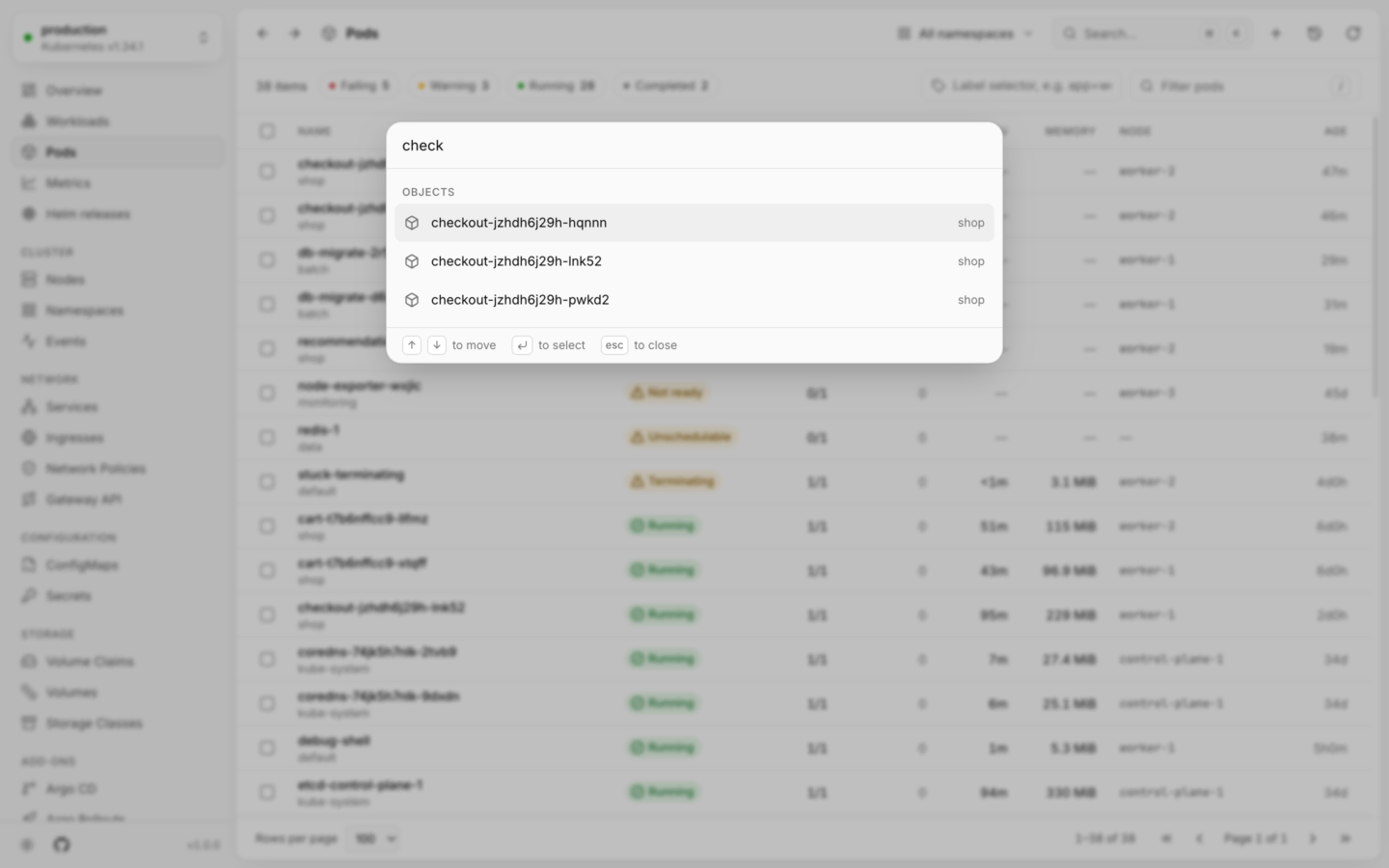
 Results come in groups:
| Group | What's in it |
| - | - |
| **Actions** | When an object is open: everything you can do to it. Actions you can't take are shown, disabled. |
| **Objects** | Once you've typed two characters: objects whose names match, among those Lumovi has already loaded in this cluster (up to 20). |
| **Go to** | Every view: the overview, Workloads, Metrics and [Right-sizing](/metrics/right-sizing), Helm releases, API resources, the page of each [add-on](/custom-resources/add-ons) the cluster has (marked **Add-on**), and every kind the cluster serves, found by name, kind, short name or API group. Custom resources included. |
| **Namespace** | **All namespaces**, and every namespace. |
| **Clusters** | Every cluster in your kubeconfig, and **All clusters**. Desktop app only. |
| **Help & appearance** | **Create from YAML**, **Metrics source…**, **Keyboard shortcuts**, **Use system theme**, **Use light theme**, **Use dark theme**, and **Make** *cluster* **read-only** or **Allow changes to** *cluster*. The last one isn't there when `LUMOVI_READ_ONLY` makes every cluster read-only. |
Move with ↑ ↓, press ↵ to pick, and Esc to close.
Some views answer to other words too: `prometheus` or `usage history` finds Metrics, `recommendations` or `over-provisioned` finds Right-sizing, `charts` finds Helm releases, and `crds` finds API resources.
## Go-to keys
Every main view has a two-key shortcut: press G, then a letter, within about a second. For example G P for Pods, G D for Deployments. The sidebar shows each view's keys when you hover it, and [Keyboard shortcuts](/reference/keyboard-shortcuts) lists them all.
## The sidebar
From top to bottom, the sidebar has:
* **The cluster switcher**: the cluster you're in, its Kubernetes version, and a lock when it's [read-only](/changes/read-only). Open it to switch clusters. See [Connect your clusters](/clusters/connect#switching-clusters).
* **Overview**, **Workloads**, **Pods**, **Metrics** (with its **Right-sizing** tab) and **Helm releases**. Workloads stays highlighted on the list of each workload kind.
* **Cluster**, **Network**, **Configuration** and **Storage**: Kubernetes' own kinds, like **Nodes**, **Services**, **Secrets** and **Volume Claims**. [Add-ons](/custom-resources/add-ons) that extend them sit with them when the cluster has them: **Cilium**, **Gateway API**, **Linkerd** and **Traefik** under Network, **Sealed Secrets** under Configuration, **Longhorn**, **Rook Ceph** and **Volume Snapshots** under Storage.
* **Pinned**: the kinds you pinned, in every cluster that serves them. Pin a custom kind from the pin button above its list, or from **API resources**.
* **Add-ons**: a page for each of the other tools the cluster runs, like **Argo CD**, **cert-manager** or **Karpenter**.
* **Custom resources**: the custom kinds you opened last in this cluster (up to five), then **API resources**, with how many custom kinds the cluster serves. Kinds you pinned, and kinds that belong to an add-on, aren't repeated here.
At the bottom are the theme, your account when Lumovi runs [in your cluster](/server/overview), a link to Lumovi on GitHub, and the version you're running.
ReplicaSets and Autoscalers have lists of their own, but no place in the sidebar: find them with ⌘K.
## Narrowing a list
Lists of objects, the Workloads page and add-on pages all have the same three tools above them. **Helm releases** has the first two.
### Health
The chips count each [health level](/explore/health) in the list: **Failing**, **Warning**, **In progress**, **Healthy**, **Inactive** (some kinds use their own words, like **Running** for pods). Click one to show only those, and click more to add them. Click it again to clear it.
### Filter
Press /, or click the filter box, and type. It matches, without case:
* names and namespaces
* labels, written as `key=value`, like `app=checkout`
* for events, the reason, message and object's name
* for custom resources, what the list's columns show
On the Workloads page, the filter also matches each workload's kind and images. On an add-on's page, it matches each object's kind and what its status says, like the reason it failed.
↓ moves from the filter into the list. Esc leaves the filter.
### Label selector
The label selector is sent to the cluster, which does the filtering, so it's the way to narrow lists in big clusters. It takes Kubernetes' own syntax; press ↵ to apply it.
```text theme={"theme":{"light":"github-light","dark":"github-dark-default"}}
app=web
app=web,tier!=cache
environment in (staging, production)
!canary
```
A list stops at 5,000 objects (or `LUMOVI_MAX_LIST_ITEMS`). When there are more, it says so, with **Filter by label**, because a selector lets the cluster send only the ones you want.
## Sorting and pages
* **Sort** by clicking a column's header, and again to reverse it. Not every column sorts: the name, status and age do, and so do numbers like restarts, CPU, memory, count and last seen, and the columns custom resources get from the cluster or a view.
* Lists start sorted by status, the most urgent first; kinds with no status by name, and events by when they were last seen. **Helm releases** starts sorted by name.
* **Pages** hold 100 rows, or 50, 250 or 500 (**Rows per page**). Use ← → for the previous and next page. **Helm releases** shows every release on one page.
## Moving through a list
| Keys | Does |
| - | - |
| ↑ ↓, or J K | Move through the rows |
| Home End | First and last row |
| PgUp PgDn | Ten rows at a time |
| ↵ | Open the row |
| X, ⇧X | Select the row, or a range |
| ⌘A | Select every row on the page |
| Esc | Clear the selection, then close the panel |
## Back and Forward
The filter, health chips, label selector, sort, page and the open object are all part of the page's address. **Back** (⌘\[ or Alt←) and **Forward** (⌘] or Alt→) bring each of them back, like in a browser. On **Helm releases**, only the open release is part of the address.
**In your cluster:** these addresses are real links. Copy one from the address bar to share a filtered list, or an open pod, with a teammate.
Every shortcut, in one place.
Act on the rows you've picked.
This documentation is built and hosted on [Mintlify](https://mintlify.com), a developer documentation platform.
Results come in groups:
| Group | What's in it |
| - | - |
| **Actions** | When an object is open: everything you can do to it. Actions you can't take are shown, disabled. |
| **Objects** | Once you've typed two characters: objects whose names match, among those Lumovi has already loaded in this cluster (up to 20). |
| **Go to** | Every view: the overview, Workloads, Metrics and [Right-sizing](/metrics/right-sizing), Helm releases, API resources, the page of each [add-on](/custom-resources/add-ons) the cluster has (marked **Add-on**), and every kind the cluster serves, found by name, kind, short name or API group. Custom resources included. |
| **Namespace** | **All namespaces**, and every namespace. |
| **Clusters** | Every cluster in your kubeconfig, and **All clusters**. Desktop app only. |
| **Help & appearance** | **Create from YAML**, **Metrics source…**, **Keyboard shortcuts**, **Use system theme**, **Use light theme**, **Use dark theme**, and **Make** *cluster* **read-only** or **Allow changes to** *cluster*. The last one isn't there when `LUMOVI_READ_ONLY` makes every cluster read-only. |
Move with ↑ ↓, press ↵ to pick, and Esc to close.
Some views answer to other words too: `prometheus` or `usage history` finds Metrics, `recommendations` or `over-provisioned` finds Right-sizing, `charts` finds Helm releases, and `crds` finds API resources.
## Go-to keys
Every main view has a two-key shortcut: press G, then a letter, within about a second. For example G P for Pods, G D for Deployments. The sidebar shows each view's keys when you hover it, and [Keyboard shortcuts](/reference/keyboard-shortcuts) lists them all.
## The sidebar
From top to bottom, the sidebar has:
* **The cluster switcher**: the cluster you're in, its Kubernetes version, and a lock when it's [read-only](/changes/read-only). Open it to switch clusters. See [Connect your clusters](/clusters/connect#switching-clusters).
* **Overview**, **Workloads**, **Pods**, **Metrics** (with its **Right-sizing** tab) and **Helm releases**. Workloads stays highlighted on the list of each workload kind.
* **Cluster**, **Network**, **Configuration** and **Storage**: Kubernetes' own kinds, like **Nodes**, **Services**, **Secrets** and **Volume Claims**. [Add-ons](/custom-resources/add-ons) that extend them sit with them when the cluster has them: **Cilium**, **Gateway API**, **Linkerd** and **Traefik** under Network, **Sealed Secrets** under Configuration, **Longhorn**, **Rook Ceph** and **Volume Snapshots** under Storage.
* **Pinned**: the kinds you pinned, in every cluster that serves them. Pin a custom kind from the pin button above its list, or from **API resources**.
* **Add-ons**: a page for each of the other tools the cluster runs, like **Argo CD**, **cert-manager** or **Karpenter**.
* **Custom resources**: the custom kinds you opened last in this cluster (up to five), then **API resources**, with how many custom kinds the cluster serves. Kinds you pinned, and kinds that belong to an add-on, aren't repeated here.
At the bottom are the theme, your account when Lumovi runs [in your cluster](/server/overview), a link to Lumovi on GitHub, and the version you're running.
ReplicaSets and Autoscalers have lists of their own, but no place in the sidebar: find them with ⌘K.
## Narrowing a list
Lists of objects, the Workloads page and add-on pages all have the same three tools above them. **Helm releases** has the first two.
### Health
The chips count each [health level](/explore/health) in the list: **Failing**, **Warning**, **In progress**, **Healthy**, **Inactive** (some kinds use their own words, like **Running** for pods). Click one to show only those, and click more to add them. Click it again to clear it.
### Filter
Press /, or click the filter box, and type. It matches, without case:
* names and namespaces
* labels, written as `key=value`, like `app=checkout`
* for events, the reason, message and object's name
* for custom resources, what the list's columns show
On the Workloads page, the filter also matches each workload's kind and images. On an add-on's page, it matches each object's kind and what its status says, like the reason it failed.
↓ moves from the filter into the list. Esc leaves the filter.
### Label selector
The label selector is sent to the cluster, which does the filtering, so it's the way to narrow lists in big clusters. It takes Kubernetes' own syntax; press ↵ to apply it.
```text theme={"theme":{"light":"github-light","dark":"github-dark-default"}}
app=web
app=web,tier!=cache
environment in (staging, production)
!canary
```
A list stops at 5,000 objects (or `LUMOVI_MAX_LIST_ITEMS`). When there are more, it says so, with **Filter by label**, because a selector lets the cluster send only the ones you want.
## Sorting and pages
* **Sort** by clicking a column's header, and again to reverse it. Not every column sorts: the name, status and age do, and so do numbers like restarts, CPU, memory, count and last seen, and the columns custom resources get from the cluster or a view.
* Lists start sorted by status, the most urgent first; kinds with no status by name, and events by when they were last seen. **Helm releases** starts sorted by name.
* **Pages** hold 100 rows, or 50, 250 or 500 (**Rows per page**). Use ← → for the previous and next page. **Helm releases** shows every release on one page.
## Moving through a list
| Keys | Does |
| - | - |
| ↑ ↓, or J K | Move through the rows |
| Home End | First and last row |
| PgUp PgDn | Ten rows at a time |
| ↵ | Open the row |
| X, ⇧X | Select the row, or a range |
| ⌘A | Select every row on the page |
| Esc | Clear the selection, then close the panel |
## Back and Forward
The filter, health chips, label selector, sort, page and the open object are all part of the page's address. **Back** (⌘\[ or Alt←) and **Forward** (⌘] or Alt→) bring each of them back, like in a browser. On **Helm releases**, only the open release is part of the address.
**In your cluster:** these addresses are real links. Copy one from the address bar to share a filtered list, or an open pod, with a teammate.
Every shortcut, in one place.
Act on the rows you've picked.
This documentation is built and hosted on [Mintlify](https://mintlify.com), a developer documentation platform.