

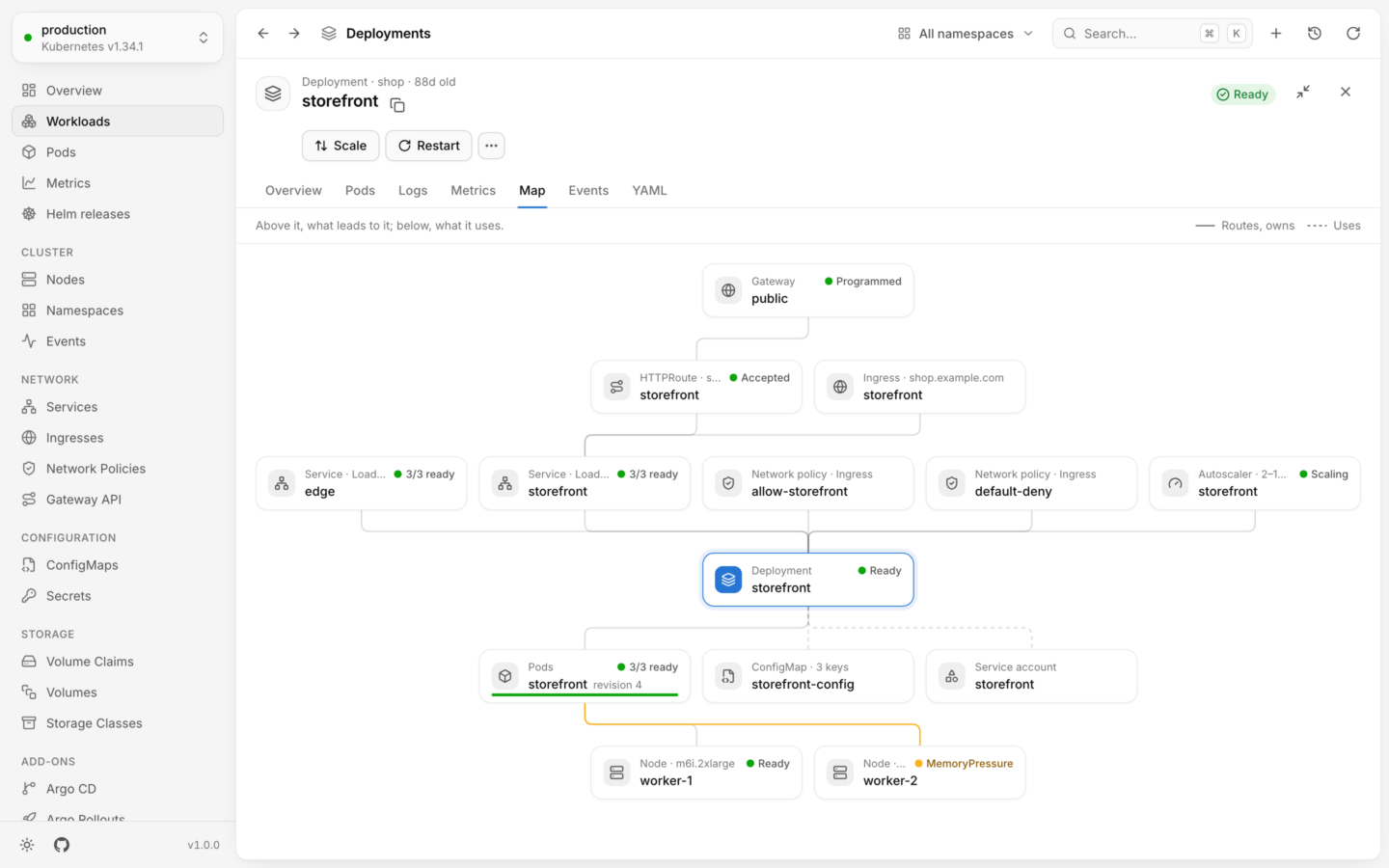
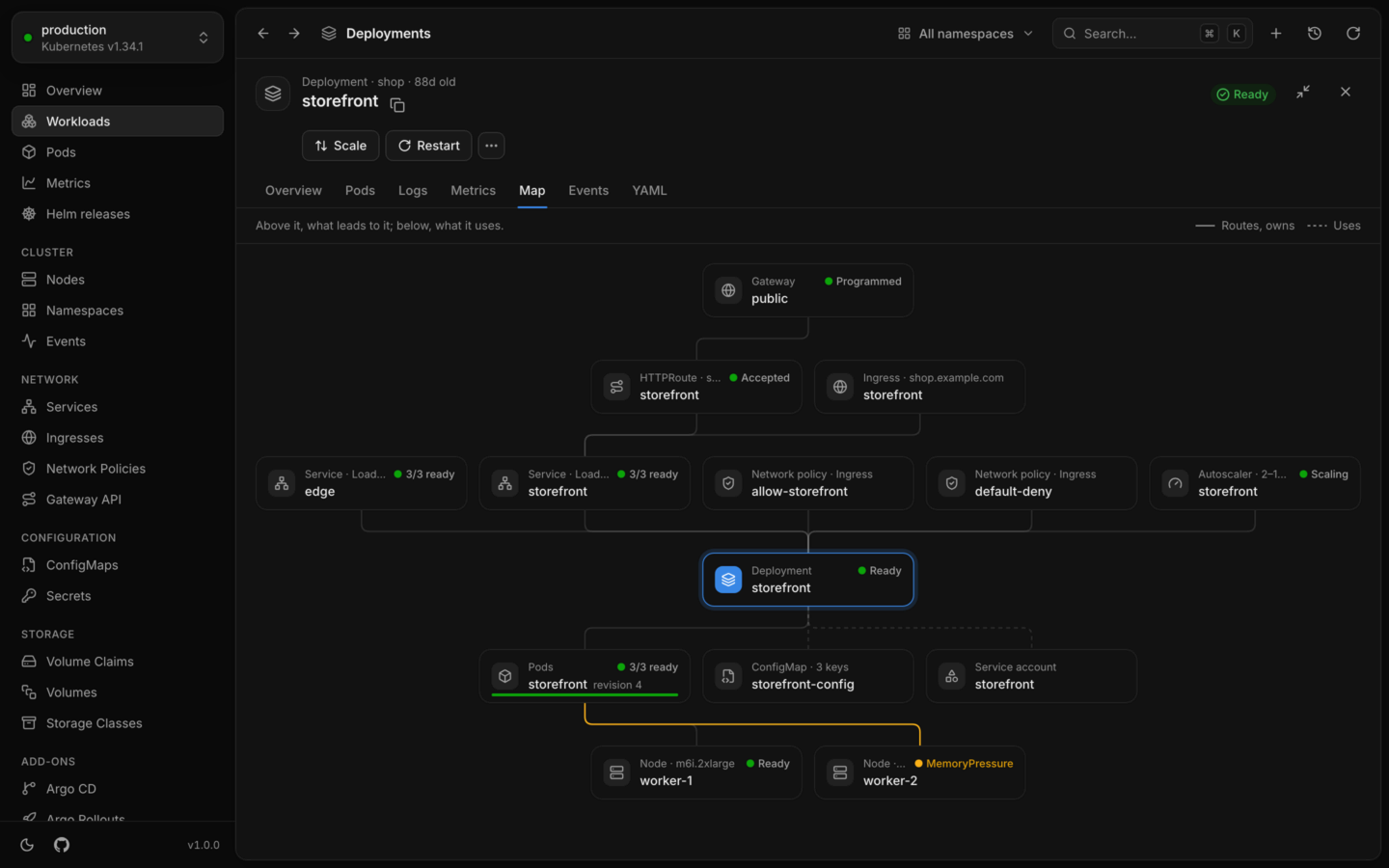
What leads to a deployment, from its gateway to its services, and what it uses and runs on, to the node under memory pressure.
Open it
Open an object, and choose Map, just before Events. Every kind has one except events and namespaces, which relate to everything in their scope or to nothing. The map covers the object’s own namespace, whatever the namespace menu shows. An object without a namespace, like a node or a volume, is mapped across the whole cluster. For more room, choose Expand panel in the panel’s header.Read the map
The line at the top says how it reads: Above it, what leads to it; below, what it uses. The object the map is about has a colored icon and outline. Cards sit in rows, in the direction things flow: from gateways and ingresses, through services and the workload, to its pods, and on to the nodes they run on and the volumes they mount. Each row is ordered to keep lines from crossing. Lines run like an organization chart’s, sharing a lane where several fan out from one card or into one. The legend on the right tells the two kinds of line apart:
A line to something that’s failing or warning takes its color, so the way to a problem stands out.
What a card shows
Each card has the object’s kind, its name, and its status as the lists show it, like Ready or MemoryPressure. Some kinds add a word about the object, next to the kind:
A Service’s status is about the pods it selects: 3/3 ready, 1/3 ready when some aren’t, 0/2 ready when none are, and No pods when its selector matches nothing.
For screen readers, each card also says what it’s connected to, like “Selects Deployment storefront. Ingress storefront: routes to it.”
What it connects
Lumovi reads the connections from the objects themselves:
Gateways and HTTPRoutes are on the map when the cluster has Gateway API installed. Two things every pod has are left out, since they’d say nothing: the
default service account, and the token and CA certificate Kubernetes mounts into every pod.
A Deployment’s ReplicaSets don’t get cards: its pods hang off the Deployment, the way you think of them. Open a ReplicaSet to see its own map.
How far it goes
The map follows connections a few steps out from the object: up to three steps up, to what leads to it, and up to five down, to what it uses. That’s enough to go from a workload’s gateway to the nodes it runs on, and it keeps a map the same size however big the cluster is. A node’s map goes two steps up: the pods running on it, and the workloads they belong to. Their services are on the workloads’ own maps. Only what’s connected through the object is shown. If a Service selects two Deployments, the map of one doesn’t show the other.Pods, grouped
A workload’s pods are one card, Pods, however many replicas it runs. A Deployment gets a card per revision, named after it with its revision, like storefront revision 4, so a rollout in progress shows the old pods and the new ones side by side. A CronJob’s pods are grouped by Job. The card says how many are ready, like 3/3 ready, and a bar along its bottom shows each pod’s health. Click it to show each pod as a card of its own. Collapse, at the top of the map, groups them again. The pod a map is about always has a card of its own.Missing and unknown
When an object refers to something that isn’t there, like a ConfigMap that was never created, a Service an ingress routes to, or a node that’s gone, the map still shows it, with a dashed red outline and Not found. The line to it is red, so it’s hard to miss. When Lumovi can’t list a kind (your account can’t read Secrets, say), what refers to one still shows, but without a status, since Lumovi can’t tell whether it exists. When nothing connects to the object and it connects to nothing, the map says Nothing connected, and why:
These are good places to look for leftovers to clean up.
Rows that don’t fit
A row with more cards than the panel fits, like a node’s hundreds of pods, ends in a card like + 12 more. What shows first is the object itself, then what’s unwell, then what goes by the object’s name, like its Service and its autoscaler. Lines to the hidden cards go to that card. Click it to show the whole row, over as many lines as it takes. Collapse shrinks it again. Expand panel fits more cards in each row.Trace a chain
Point at a card, or move to it with Tab, and the map traces its chain: everything it leads to and everything that leads to it, all the way. Its lines are highlighted and the rest of the map fades. It answers questions like “which ingress reaches these pods?” or “what ends up using this Secret?” at a glance.Open another object
Click a card, or press ↵ on it, to open its object in the detail panel, on its own map. From there you can keep following the connections. The object the map is about, and cards that are missing, can’t be opened. A Pods card shows each pod instead.Custom resources
Custom resources have a map too. Lumovi connects them by their owner references, so a custom resource that creates pods or ReplicaSets leads to them, and by what their view relates them to. A Karpenter node pool’s map, for example, shows the nodes it launched.What it needs
The map is drawn from the lists Lumovi already reads, and refreshes with them while it’s open. It lists:- In the object’s namespace: pods, Deployments, ReplicaSets, StatefulSets, DaemonSets, Jobs, CronJobs, autoscalers, Services, Ingresses, network policies, ConfigMaps, Secrets, volume claims, service accounts and PodDisruptionBudgets, and HTTPRoutes and Gateways where Gateway API is installed. For an object without a namespace, like a node, these are listed in every namespace.
- Across the cluster: nodes, volumes and storage classes.
- For a custom resource, the kinds its view relates it to.
LUMOVI_MAX_LIST_ITEMS). See Permissions.
Object details
The detail panel, and every tab in it.
Health and status
What each card’s status means.