


A pod's details next to the list: its containers, their usage and state.
The header
At the top: the object’s kind, namespace and age, its name (with a button to copy it), and its status. Below them are up to two of the actions you’ll use most for that kind, like Scale, Restart, Shell or Cordon (or Edit YAML, for kinds without one), and ⋯ for the rest. Press . to open that menu from the keyboard. (⌘ is Ctrl on Windows and Linux.)
Drag the panel’s edge to make it wider or narrower, or focus the edge and use ← →. It starts 600 pixels wide, and remembers the width you choose.
Tabs
Each kind gets the tabs that make sense for it:
Where the panel is too narrow for them all, the tabs that fit stay in their order, and the rest are under More, at the row’s end; on a phone, it opens a sheet. The tab that’s open always has a place in the row. From the keyboard, More comes after the last tab: → past it, or End, then ↓, ↵ or Space opens it.
Overview
Details comes first: when the object was created, Controlled by (a link to its owner, like the ReplicaSet behind a pod), and the facts that matter for its kind. A Deployment shows its replicas, strategy and selector; a Service its type, IPs and selector; a node its OS, kernel, runtime and kubelet. Then a section for what’s particular to the kind:
Then Conditions, Labels and Annotations, when it has them. Conditions show at a glance which are healthy, with their reason, message and when they changed.
Names of related objects (a pod’s node, a claim’s volume, an owner) are links: click one to open it.
Custom resources and other kinds
For kinds without a page of their own, the Overview shows the object’s Spec, Status and other fields as a tree. Short values are inline, nested ones are indented, and deep ones start folded. Hover a field’s name to read what it means. The explanation comes from the kind’s OpenAPI schema, which clusters serve from Kubernetes 1.27. If a view covers the kind, its facts go in Details, and the objects it links to are in Related. Lists a view relates to the object, like a node pool’s nodes, get tabs of their own.

A cert-manager certificate, shown with Lumovi's view of it.
Pods
The pods the object runs or selects (or, for a node, every pod on it), with their status, ready containers and restarts, failing ones first. Click one to open it.Map
How the object is connected: above it, what leads to it, like the ingress, service and autoscaler in front of a Deployment; below it, what it owns, uses and runs on, down to its pods’ nodes. Missing references stand out, and clicking a card opens that object’s own map. See An object’s map.Events
The events about this object, newest first. Often the quickest answer to “why won’t it start?”Audit
Who changed the object through Lumovi, read it, or opened a shell in it, and how it went, from the audit log: its 50 latest events, newest first, and new ones as they happen. On a server, you see your own, unless you’re one of its auditors. Open in the audit log shows them all, as far back as the log keeps. See An object’s Audit tab.YAML
The whole object, syntax highlighted. Copy YAML copies it, and Edit opens it for editing, checked by the cluster and shown as a diff before it’s saved. For a Secret, values stay hidden until you choose Reveal values, and Hide values hides them again.Keep it open below
In the desktop app, Keep open below, beside Expand panel (or in the command palette with the object open), keeps the object open below the pages, as a tab beside the terminals, on the tab it was showing. A pod’s logs keep coming, and a Deployment’s metrics keep moving, while you go elsewhere, other clusters included. Once it’s kept, the button says Show below, and shows its tab.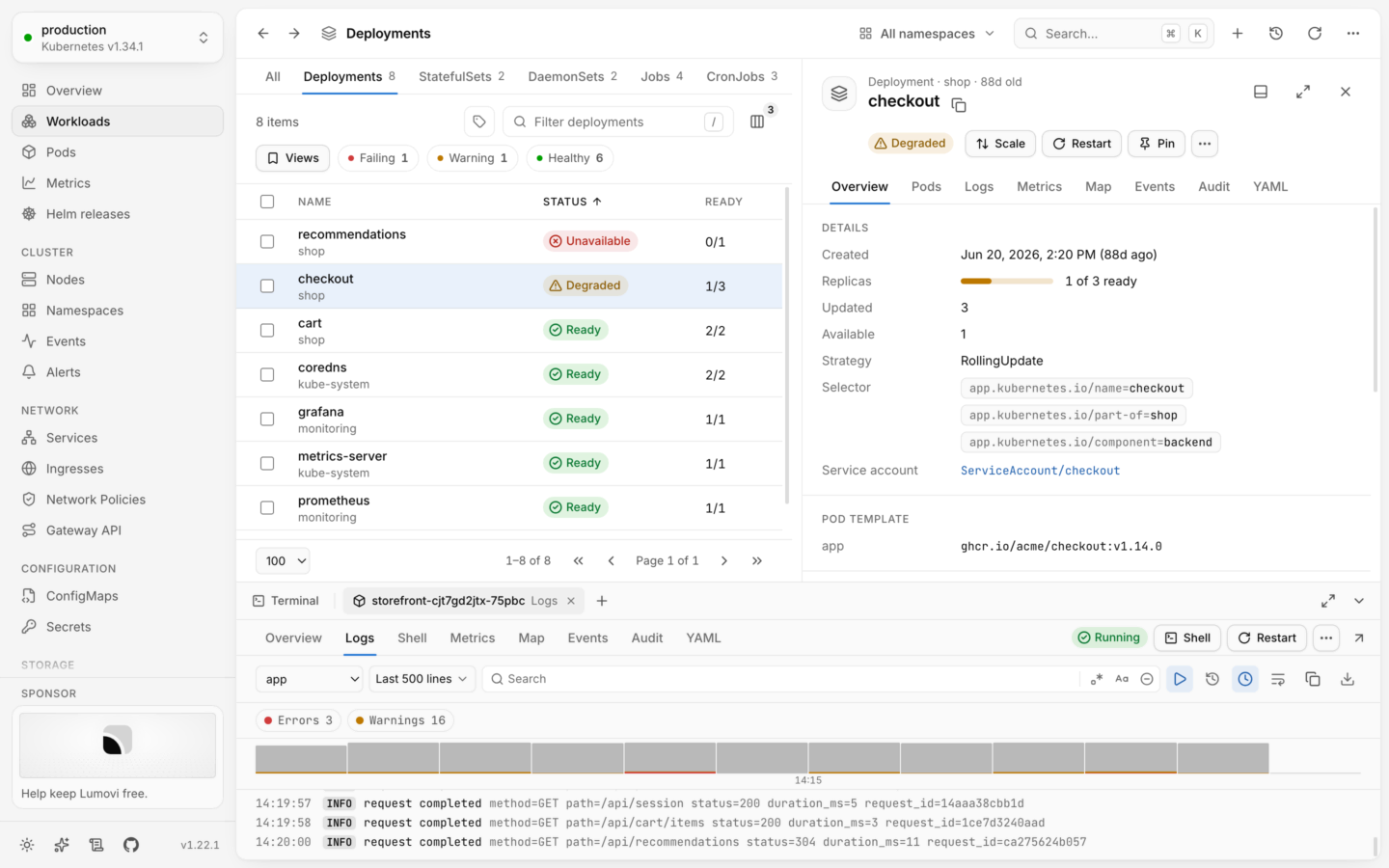
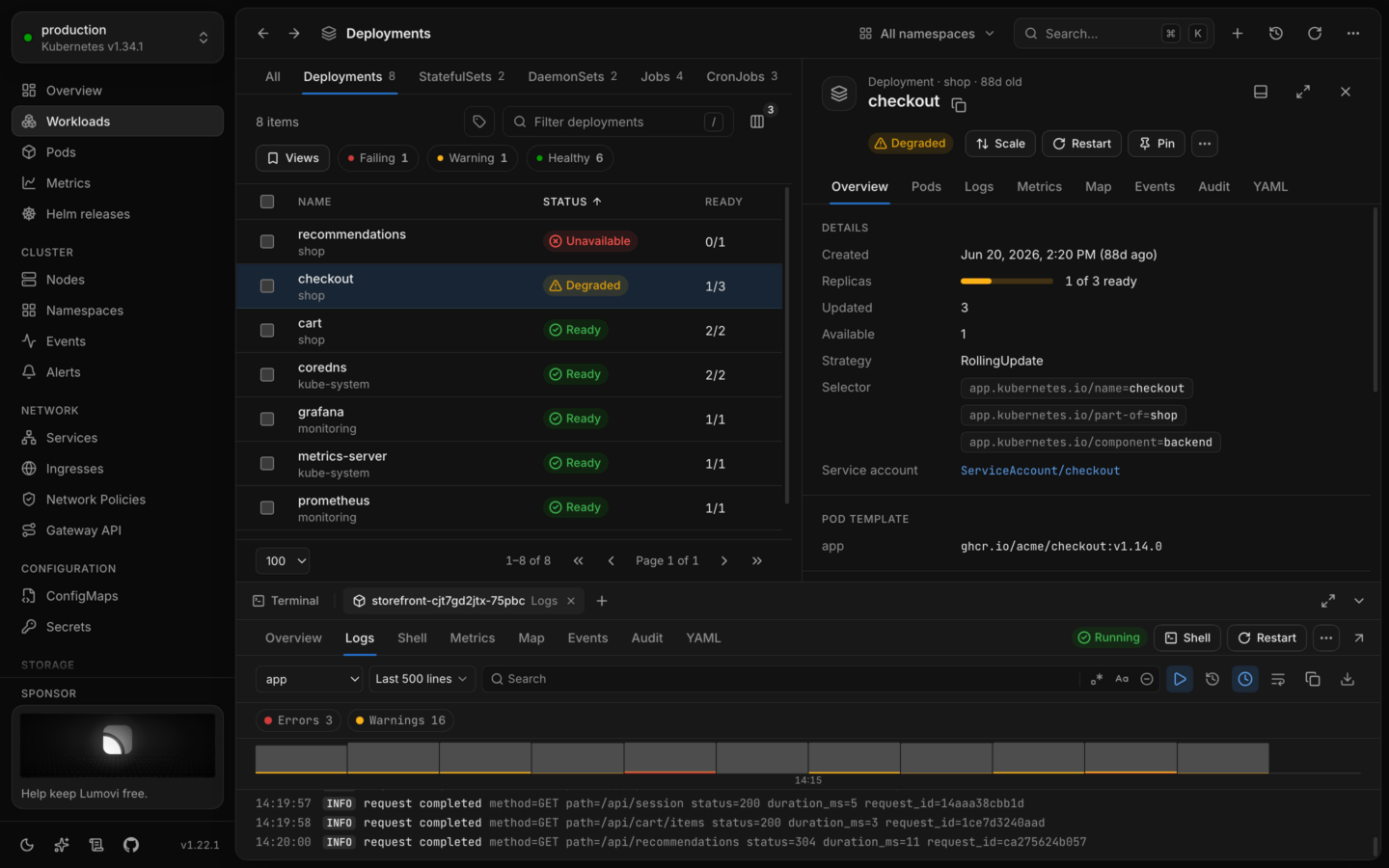
A pod’s logs kept open below, while the pages above show something else.
- Deleted, its tab says deleted, and what it last showed stays, dimmed: “Pod cart-7d9f6c5b8-x2kqp was deleted at 14:32. Its lines up to then stay here until you close this tab.” (On another tab than Logs: “Its last state stays here…”) Where Lumovi knows what ran it and that’s still there, it says so, “It belonged to the Deployment cart, which is still there.”, with Keep cart open instead. Close this tab lets it go.
- Unreachable, when its cluster stops answering, its tab says unreachable, and a strip says “Can’t reach staging since 14:30. Lumovi tries again on its own, and the lines go on from the last one here.” (On another tab: “…what’s here is from 14:30.”) Once the cluster answers, it’s as before.
Compare with another
Compare with…, in More actions and the command palette, sets the object beside another of its kind: in another namespace, or another cluster. Pick a cluster, then a namespace, then the object; one with the same name is marked Same name. A cluster that signs in through a program says “Signs in when opened”, and is read only when you choose Open on its row. The page shows what differs, each side as its YAML, with Swap to change sides. “No differences” says so.- Left out until you ask: the object’s status, and what the cluster set itself: uids, versions, times, managed fields, owners, kubectl’s and controllers’ annotations, and what it was given, like a Service’s address or a pod’s node. Show status and cluster-set fields puts them back, and Lumovi remembers the choice.
- A workload’s config: the ConfigMaps and Secrets each side refers to are compared too, paired by where they’re referred to (a volume, an env var, an image pull secret) rather than by name, which often differs between where they run.
- Secrets: values are masked on both sides until Reveal values, and a changed value shows as a changed line with neither value. Where your access on either side shows a Secret’s keys only, only keys are compared, and values say not compared.
- Withheld fields: a field a plugin’s file withholds reads (withheld) on both sides, never as a difference.
Right-click a row
Every row has a menu with the object’s actions, and:- Open
- Copy name and, for objects in a namespace, Copy namespace/name
- Copy kubectl describe, a ready-to-run command for this object
- Copy kubectl logs, for pods
Links to an open object
The open object is part of the address, so Back (⌘[) and Forward (⌘]) move between objects you opened, the way a browser does.In your cluster: every page, and every open object, has an address you can share. Send a teammate the link to a failing pod, and it opens on the same pod for them, with their own permissions.
Edit YAML
Change any object, with a dry run and a diff first.
Actions by kind
Everything the panel’s buttons and menu can do.