

The command palette
Press ⌘K (or click Search… in the header) and type. Case doesn’t matter. Views and commands match when every word you type appears in them, in any order, sovol cl finds Volume Claims. Objects match when their name contains what you typed.
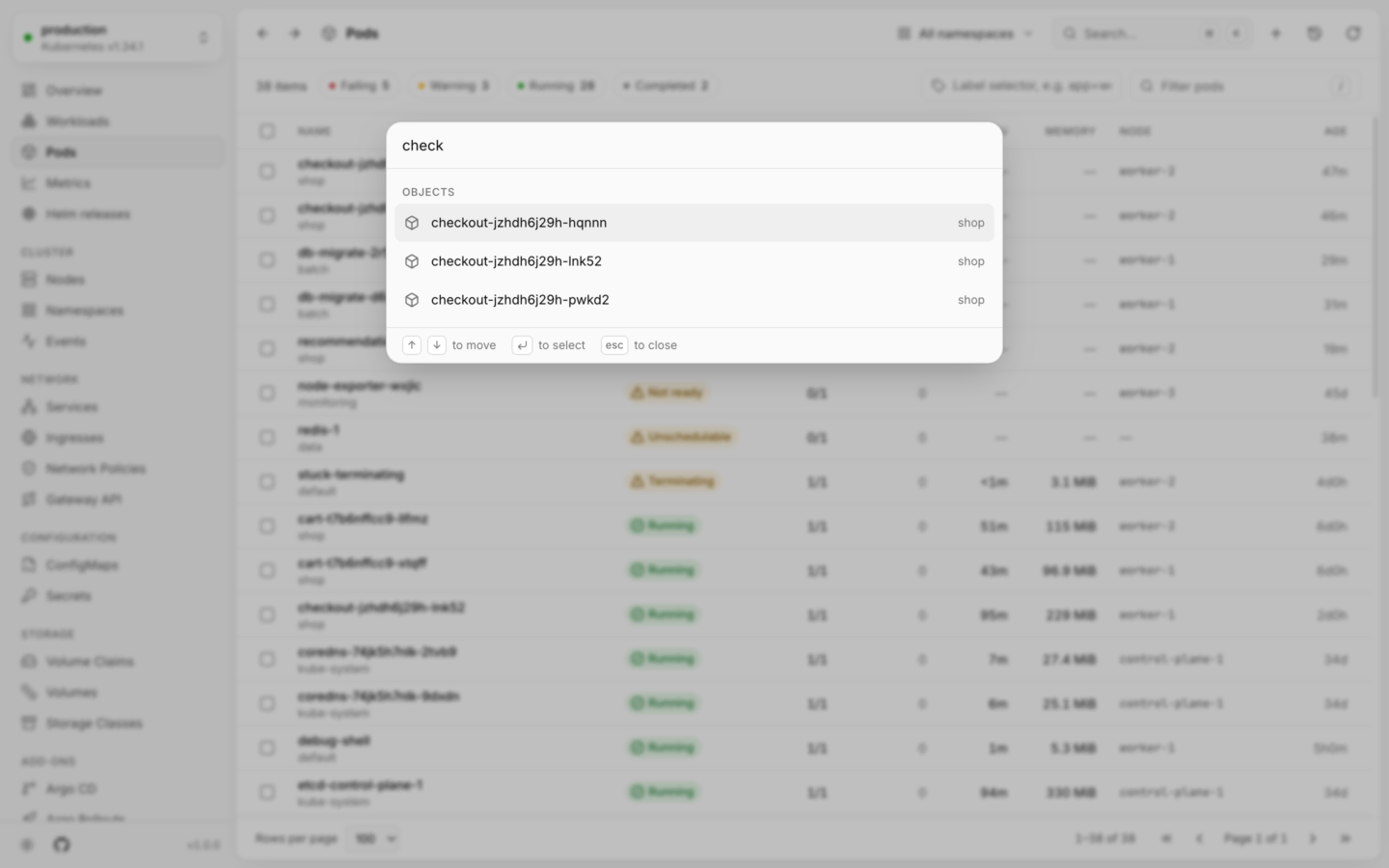

Finding anything in the cluster, or anything to do, from the keyboard.
Move with ↑ ↓, press ↵ to pick, and Esc to close.
Go-to keys
Every main view has a two-key shortcut: press G, then a letter, within about a second. For example G P for Pods, G D for Deployments. The sidebar shows each view’s keys when you hover it, and Keyboard shortcuts lists them all.The sidebar
From top to bottom, the sidebar has:- The cluster switcher: the cluster you’re in, its Kubernetes version, and a lock when it’s read-only. Open it to switch clusters. See Connect your clusters.
- Overview, Workloads, Pods, Metrics (with its Right-sizing tab) and Helm releases. Workloads stays highlighted on the list of each workload kind.
- Cluster, Network, Configuration and Storage: Kubernetes’ own kinds, like Nodes, Services, Secrets and Volume Claims. Add-ons that extend them sit with them when the cluster has them: Cilium, Gateway API, Linkerd and Traefik under Network, Sealed Secrets under Configuration, Longhorn, Rook Ceph and Volume Snapshots under Storage.
- Pinned: the kinds you pinned, in every cluster that serves them. Pin a custom kind from the pin button above its list, or from API resources.
- Add-ons: a page for each of the other tools the cluster runs, like Argo CD, cert-manager or Karpenter.
- Custom resources: the custom kinds you opened last in this cluster (up to five), then API resources, with how many custom kinds the cluster serves. Kinds you pinned, and kinds that belong to an add-on, aren’t repeated here.
Narrowing a list
Lists of objects, the Workloads page and add-on pages all have the same three tools above them. Helm releases has the first two.Health
The chips count each health level in the list: Failing, Warning, In progress, Healthy, Inactive (some kinds use their own words, like Running for pods). Click one to show only those, and click more to add them. Click it again to clear it.Filter
Press /, or click the filter box, and type. It matches, without case:- names and namespaces
- labels, written as
key=value, likeapp=checkout - for events, the reason, message and object’s name
- for custom resources, what the list’s columns show
Label selector
The label selector is sent to the cluster, which does the filtering, so it’s the way to narrow lists in big clusters. It takes Kubernetes’ own syntax; press ↵ to apply it.LUMOVI_MAX_LIST_ITEMS). When there are more, it says so, with Filter by label, because a selector lets the cluster send only the ones you want.
Sorting and pages
- Sort by clicking a column’s header, and again to reverse it. Not every column sorts: the name, status and age do, and so do numbers like restarts, CPU, memory, count and last seen, and the columns custom resources get from the cluster or a view.
- Lists start sorted by status, the most urgent first; kinds with no status by name, and events by when they were last seen. Helm releases starts sorted by name.
- Pages hold 100 rows, or 50, 250 or 500 (Rows per page). Use ← → for the previous and next page. Helm releases shows every release on one page.
Moving through a list
Back and Forward
The filter, health chips, label selector, sort, page and the open object are all part of the page’s address. Back (⌘[ or Alt←) and Forward (⌘] or Alt→) bring each of them back, like in a browser. On Helm releases, only the open release is part of the address.In your cluster: these addresses are real links. Copy one from the address bar to share a filtered list, or an open pod, with a teammate.
Keyboard shortcuts
Every shortcut, in one place.
Several at once
Act on the rows you’ve picked.