

helm on your computer and no access beyond reading Secrets. Changing a release goes through your own helm: see Upgrade and roll back.


Every release, its chart, version and status.
The list
Each release shows its Status, Chart and version, App version, Revision and when it was Updated. The list starts sorted by name, and shows every release on one page. Sort by any column; sorting by Status puts failed releases first. Press / to filter by name, namespace, chart or app version, or narrow the list by status with the chips:
The list refreshes every 15 seconds. Install chart at the top installs a new one: see Install a chart.
A release
Click a release to open it next to the list, or move to it with ↑ ↓ and press ↵. Its actions are at the top: Upgrade…, Roll back… when it has an earlier revision to go back to, and Uninstall…, the trash button.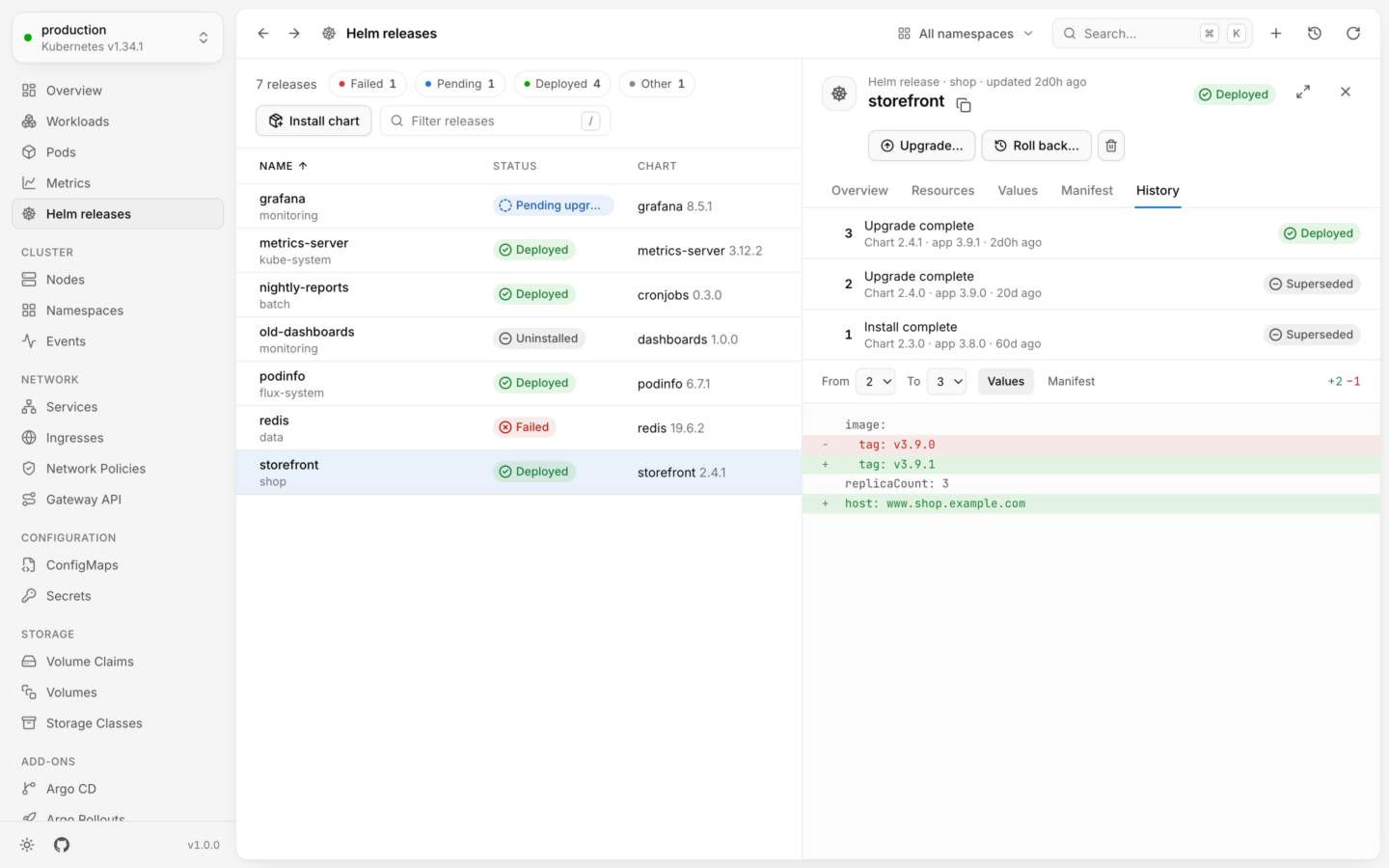

A release's history, with a diff between any two revisions.
- Overview
- Resources
- Values
- Manifest
- History
The facts: Chart and its version, App version, Revision, Last change (Helm’s description of it, like “Upgrade complete”), when it was Installed and Updated, what the chart says it is, and its Subcharts. Below them are the release’s Notes, as
helm install printed them.Releases Flux manages
If a release is managed by Flux’s helm-controller, Lumovi says so at the top of the release: Flux puts back changes made to it any other way. Open its HelmRelease takes you to theHelmRelease object, where you can reconcile, suspend or resume it with Lumovi’s view for Flux. The upgrade, rollback and uninstall dialogs warn you too.
What it needs
Helm 3 and 4 keep each revision of a release in a Secret labeled
owner=helm (or a ConfigMap, with Helm’s configmap storage driver). Lumovi reads both. If your account can’t list Secrets, the page says so instead of showing an empty list.
Upgrade and roll back
New values or a new chart, reviewed as a dry run first.
Install a chart
From Artifact Hub, a repository or a registry.