

Volumes and storage classes aren’t in a namespace, so their lists always show all of them. (⌘ is Ctrl on Windows and Linux.)
When the cluster has them, the sections also hold plugins: Sealed Secrets under Configuration, and Longhorn, Rook Ceph and Volume Snapshots under Storage.
Every one of these objects also has a Map tab: what uses a ConfigMap, Secret or claim, and what a claim is bound to, down to its volume and storage class. See Map.
ConfigMaps
Open a ConfigMap and its Data section shows each key with its value, as text. Binary values (binaryData) are counted in the Keys column, and are in the YAML.
Secrets
Secret values stay hidden until you ask for them.

A secret's keys, hidden until asked for.
- The list shows each secret’s type and how many keys it has. Lumovi drops the values before the list reaches the page.
- Data shows each key with its size, and its value as
••••••••. Reveal one key with its eye button, or all of them with Reveal all. Values are decoded from base64 for you. - Copy next to a key copies its value without revealing it, for pasting somewhere safe.
- On a Lumovi server, your access may show you a namespace’s Secrets’ keys only: Data says “Only the keys”, each value reads Value hidden by your access, and YAML says Values hidden by your access. Their values never reach your browser, not even in what a change answers with, and editing a Secret as YAML is off, since that writes it whole. Where your access hides Secrets, you can’t open or change them, and lists across every namespace leave them out.
- The audit log records who opened a Secret, with its keys, never its values. Opening one counts, revealed or not: its values reach the page, hidden.
- YAML hides values too, until you choose Reveal values. The
kubectl.kubernetes.io/last-applied-configurationannotation holds a copy of the values, so it’s hidden as well. Under Annotations in Overview, it reads Hidden: it holds the secret’s values.
Certificates
Where you may see a Secret’s values, Lumovi says what the certificates in it say: a TLS Secret’stls.crt, and any other value that holds a PEM certificate, like a ca.crt. The certificates are read on the server, or in the desktop app’s own process, and only what’s below reaches the page. A private key is never read.
- In its panel, Certificate comes before Data, with each key’s: its Subject; the Names it’s for, DNS names and then IP addresses; its Issuer, or Self-signed; when it’s Valid, from and to; and its Chain, how many certificates follow it, and the one of them that ends first. A certificate that has expired, isn’t valid yet, or ends within 14 days says so, Expired, Not yet valid or Expires soon, and so does the panel’s top. A bundle of certificates that aren’t one chain, like a set of roots, is only counted. A value Lumovi can’t read as a certificate says so.
- The list has an Expires column: how long until the first of a Secret’s certificates ends, its chain’s included, like in 87d, or how long ago. Not valid and Expires soon, above the list, show only those Secrets.
- Where your access shows a Secret’s keys only, or hides it, none of this shows, and nothing of it is read for you.
- The audit log records it as reading the Secret: “Read the certificates of Secret storefront-tls”, and, for a list, “Read the certificates of 14 Secrets in shop”.
- If the cluster doesn’t answer, the panel says “Lumovi couldn’t read the certificate just now. It’s trying again.”, and tries every 5 seconds for a minute or so. Then it offers Try again.
Editing a secret
When you edit a Secret’s YAML, its text values appear decoded, understringData, so you can read and change them as text. Values that aren’t text stay base64-encoded under data. On save, everything is encoded back into data. See Edit YAML.
Resource quotas and limit ranges
A quota’s row shows its fullest resource, with a meter and how full, like “93% · 3.75 Gi of 4 Gi”. It’s Within quota, Nearly full from 90%, Full at its limit, each with an icon as well as a colour, or Not counted yet before the cluster has counted it. Its Overview has a meter for each resource it limits; a resource it forbids reads “Not allowed · 0 of 0”, and a quota with a scope says whose pods it counts, like “Every pod in shop”. A limit range says what it sets, a line for each kind of thing: “A container’s default request 100m CPU, 64Mi memory”, “A pod up to 4 CPU, 8Gi memory”, “A volume claim from 1Gi to 100Gi”. A namespace’s Overview shows its quotas and limit ranges, a quota from 90% is in Needs attention, and a Deployment whose pods a quota keeps from being made says so, with the quota to open: “1 of its 3 pods can’t be made: the namespace’s quota compute has no room for its memory request.”, and Open quota compute.Volume claims
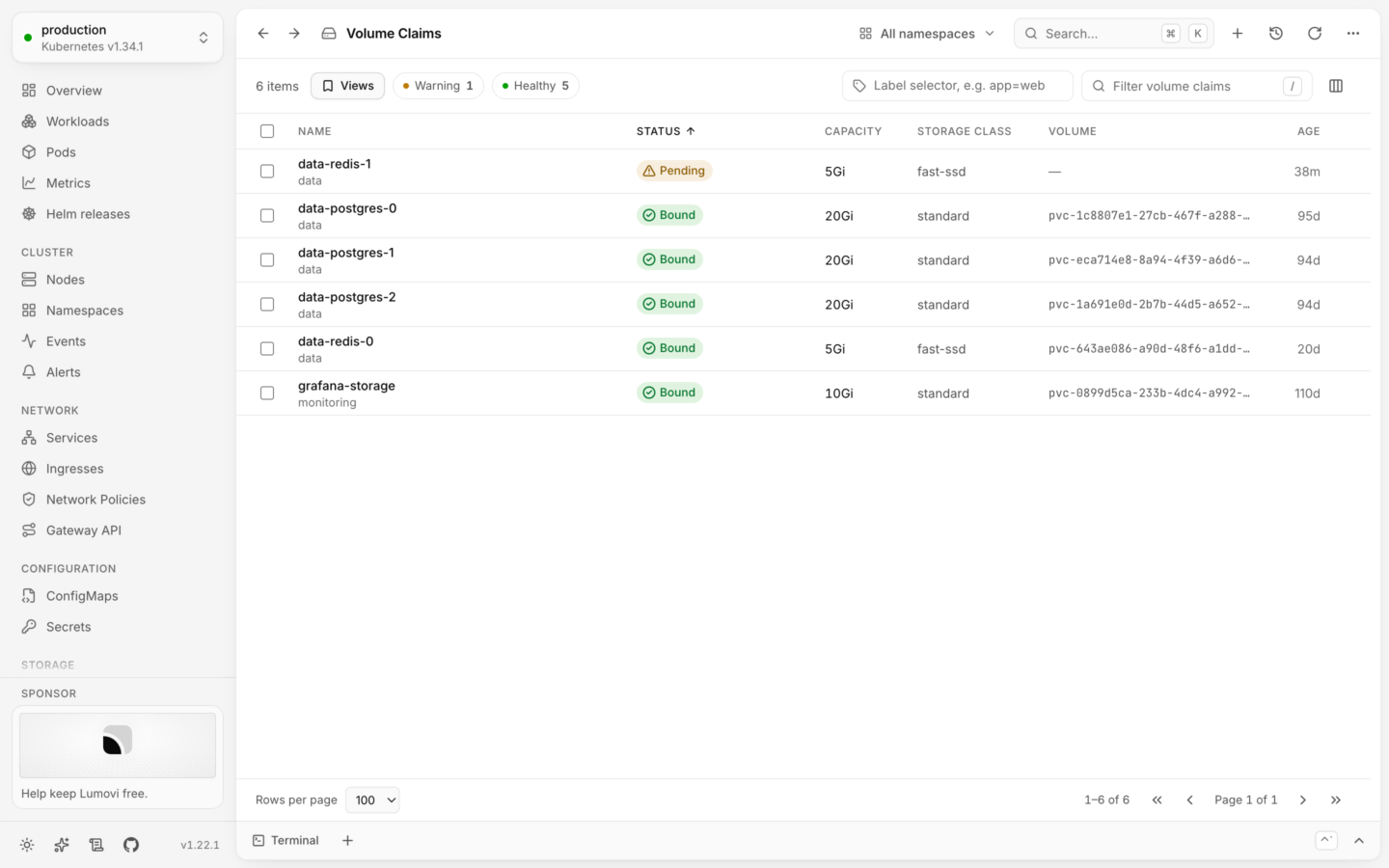

Volume claims, their capacity, storage class and volume.
Volumes
A volume is Bound or Available when all is well, and shows its phase otherwise, like Released. Open one for its capacity, access modes, reclaim policy, storage class, and a link to the claim that holds it.Storage classes
Open a storage class for whether it’s the Default, its provisioner, reclaim policy and binding mode, whether Volume expansion is allowed, and its parameters.Edit YAML
Change any object, checked by the cluster and shown as a diff first.
Object details
Everything the detail panel shows, tab by tab.