

gke-gcloud-auth-plugin, aws eks get-token and kubelogin. To add a cluster someone gave you a kubeconfig for, paste it in Lumovi: see Add a cluster.
In your cluster: Lumovi served from a cluster shows that one cluster, or a fleet of clusters your team chose, and each person signs in with their own identity. There’s no kubeconfig to read. A fleet opens on a page of its clusters, instead of the start screen. See Run it in your cluster.
Where clusters come from
Lumovi finds your kubeconfig the same waykubectl does:
- The files listed in the
KUBECONFIGenvironment variable, separated by:(;on Windows). - Otherwise,
~/.kube/config.
- Files that are missing or empty are skipped.
- When two files define a cluster, user or context with the same name, the first file wins.
- The current context is the first one any file sets.
- Relative paths in a file (to a certificate, say) are read from that file’s folder.
- Your kubeconfig couldn’t be read: the file, and the reason, in the parser’s words. Fix it and choose Reload, or choose another file.
- No clusters yet: no file has a context. Choose the file you use with kubectl, or Add a cluster.
- The kubeconfig you chose is gone: a file you chose in Lumovi was moved or deleted. Choose another, or go Back to KUBECONFIG and ~/.kube/config.
It notices a change
Lumovi watches the files it reads, and the folders you added, for a change made elsewhere: a context your cloud’s CLI adds, a file an editor saves. The start screen shows it within a second or so, without Reload. That works for a file replaced in one go, as editors and CLIs write them, and on a network drive, where the system can’t watch: Lumovi looks at each file every few seconds as well. A file caught half-written isn’t taken as it is. Lumovi waits until a change looks the same twice, a moment apart. If the file still can’t be read, it keeps the contexts it read last, and the file says so in the kubeconfig files list: “Couldn’t be read at 14:02: It isn’t YAML: …. Its 3 contexts are as they were at 13:58, and still connect with the credentials it held then.” Once the file reads again, its contexts are as it now says. Reload still reads everything again at once.Choose your kubeconfig files
The button at the bottom of the start screen names the first file Lumovi reads, and counts the others. It opens Kubeconfig files: every file Lumovi reads, merged as kubectl does, each with where it’s from (The default, From KUBECONFIG, Chosen in Lumovi, Added in Lumovi, or Clusters added in Lumovi for Lumovi’s own folder) and how many clusters it has, or why it has none.- Choose a kubeconfig… reads only the files you pick, in place of
KUBECONFIG’s or~/.kube/config. - Add another file… reads one more, after the rest.
- Add a folder… reads every kubeconfig in a folder, after everything else: see A folder of kubeconfigs.
- Back to KUBECONFIG and ~/.kube/config undoes them all: files chosen and added, and folders.
KUBECONFIG says; files you added come after KUBECONFIG’s, whatever it is when Lumovi starts. Terminals get the same files.
Each file has Show in Finder (Show in Explorer on Windows), and one you chose or added in Lumovi has Remove: “Lumovi reads these files and never writes to them. Removing one only stops Lumovi reading it.” KUBECONFIG’s own files can’t be removed here: change KUBECONFIG. A file you chose or added that’s been moved or deleted says “Missing: it was moved or deleted”, with Choose it again….
Your organization’s policy can keep Lumovi to KUBECONFIG’s files and ~/.kube/config. The list then says “Your organization’s policy keeps Lumovi to these files.”, and nothing in it can be changed.
A folder of kubeconfigs
Some tools write a kubeconfig for each cluster into one folder. Add a folder… in Kubeconfig files reads every kubeconfig in it, and keeps up as files come and go. Each folder is listed with how many kubeconfigs and contexts it has, and its kubeconfigs under it, each with its contexts. Remove stops Lumovi reading the folder. Lumovi never writes to it or to anything in it. Lumovi reads only the files directly in the folder, not the folders inside it. A file is read when it’s YAML or JSON withkind: Config, or with clusters, contexts or users. The rest are listed as skipped, each with why:
- A folder: only the files directly in this one are read
- A link to somewhere outside this folder
- Hidden, or an editor’s temporary file (a name that starts with
., or ends in~,.swpor.tmp) - Larger than 1 MB
- Not a kubeconfig
- Lumovi isn’t allowed to read it
Credentials that ask first
A folder’s kubeconfigs are used as clusters you add are. A context whose credentials use a token or a certificate opens at once. One whose credentials run a program, send a file, or go to a server Lumovi can’t verify, says Asks before it runs on the start screen: “It’s from a folder of kubeconfigs, and its credentials do something on this computer you haven’t allowed yet.” Choose it, and Allow “dev” to sign in shows exactly what they’d do, in the same words as adding a cluster: the command and its environment, the file and the server it goes to, or the server. Nothing of it is used until you choose Allow and continue; Don’t use it leaves it as it is. You agree to that very thing. Change any of it, the command, an argument, a variable, a file or the server, and Lumovi asks again. What you agreed to is kept for each file, and still holds after a restart, but not in settings copied from another computer. Terminals don’t get a folder’s kubeconfigs: kubectl would run what their credentials run, agreed to or not. A terminal for one of its clusters says ““dev” is from a folder of kubeconfigs, and Lumovi’s terminals don’t hand those to kubectl. Open one for a cluster from a kubeconfig file instead.”Credential plugins
Contexts that get their credentials from a plugin (anexec entry in the kubeconfig) work as they do in a terminal. Lumovi keeps each context’s configuration between requests, so a plugin’s cached token is reused instead of asked for again.
On macOS and Linux, apps opened from the Dock or a launcher don’t get the PATH your shell sets up. So when Lumovi starts, it asks your login shell for its PATH, and finds plugins wherever your shell would. It asks for your proxy too: see Behind a proxy. If the shell takes longer than five seconds or fails, Lumovi keeps the PATH it started with. Windows apps already get the full PATH.
If a plugin isn’t found, the start screen says Couldn’t sign in, and the cluster, opened, Couldn’t get credentials, with the message: The credential plugin “gke-gcloud-auth-plugin” wasn’t found. Install it, or make sure it’s on your PATH.
Signing in with OIDC
A kubeconfig user withauth-provider: oidc signs in with its id-token while it lasts. Once it’s 10 seconds from expiring, the next read of the cluster renews it from the issuer with the user’s refresh-token, as kubectl does. Whatever reads the cluster can renew it, an assistant too, but nothing does as Lumovi starts, or as the start screen checks its clusters.
The new tokens go back where kubectl keeps them: the kubeconfig file the user came from. Only that user’s id-token and refresh-token change; comments and everything else stay as they were. Lumovi writes them as kubectl does, under kubectl’s lock (<file>.lock), and where kubectl or another program renewed them first, takes theirs instead of writing over them. kubectl then signs in with the same tokens.
Where the file can’t be written, Lumovi keeps the new tokens until it quits, and says so once, A renewed token wasn’t saved, with why: another program is writing it, it isn’t a regular file, it belongs to another user, it’s read-only to you, it doesn’t read as YAML now, or the tokens couldn’t go in without changing anything else. kubectl may need to sign in again, and so may Lumovi next time it starts.
When a renewal fails, the cluster says Couldn’t sign in, with why: the kubeconfig has no refresh token; the identity provider refused it, as it may have expired or been used elsewhere; the provider couldn’t be reached, or its certificate isn’t trusted (with idp-certificate-authority set, that’s the only authority trusted); its issuer isn’t on https; or it answered with a token Lumovi can’t use. Sign in again with your identity provider’s tool. A refresh token the provider refused isn’t sent again for five minutes, unless the file has a new one by then; one the provider couldn’t be reached for is tried again after 10 seconds.
Lumovi in your cluster renews its own kubeconfig’s oidc user the same way, but keeps the new tokens in memory only, and never writes its kubeconfig. After a restart, it starts again from the refresh token in the file, which the provider may have stopped taking. For a server, a service account’s token or a token file lasts better.
Clusters on plain HTTP
A cluster served overhttp:// (through kubectl proxy, for example) has to opt in to unencrypted connections, the same rule as the official JavaScript client. Set insecure-skip-tls-verify: true on the cluster in your kubeconfig:
~/.kube/config
Behind a proxy
Lumovi reaches your clusters through the proxy your shell uses, fromHTTPS_PROXY, HTTP_PROXY and NO_PROXY, as kubectl does. A cluster with a proxy-url in your kubeconfig goes through that one instead:
~/.kube/config
The start screen
Lumovi opens on a list of your clusters, “Choose a cluster to explore.”, and checks each one as the list appears.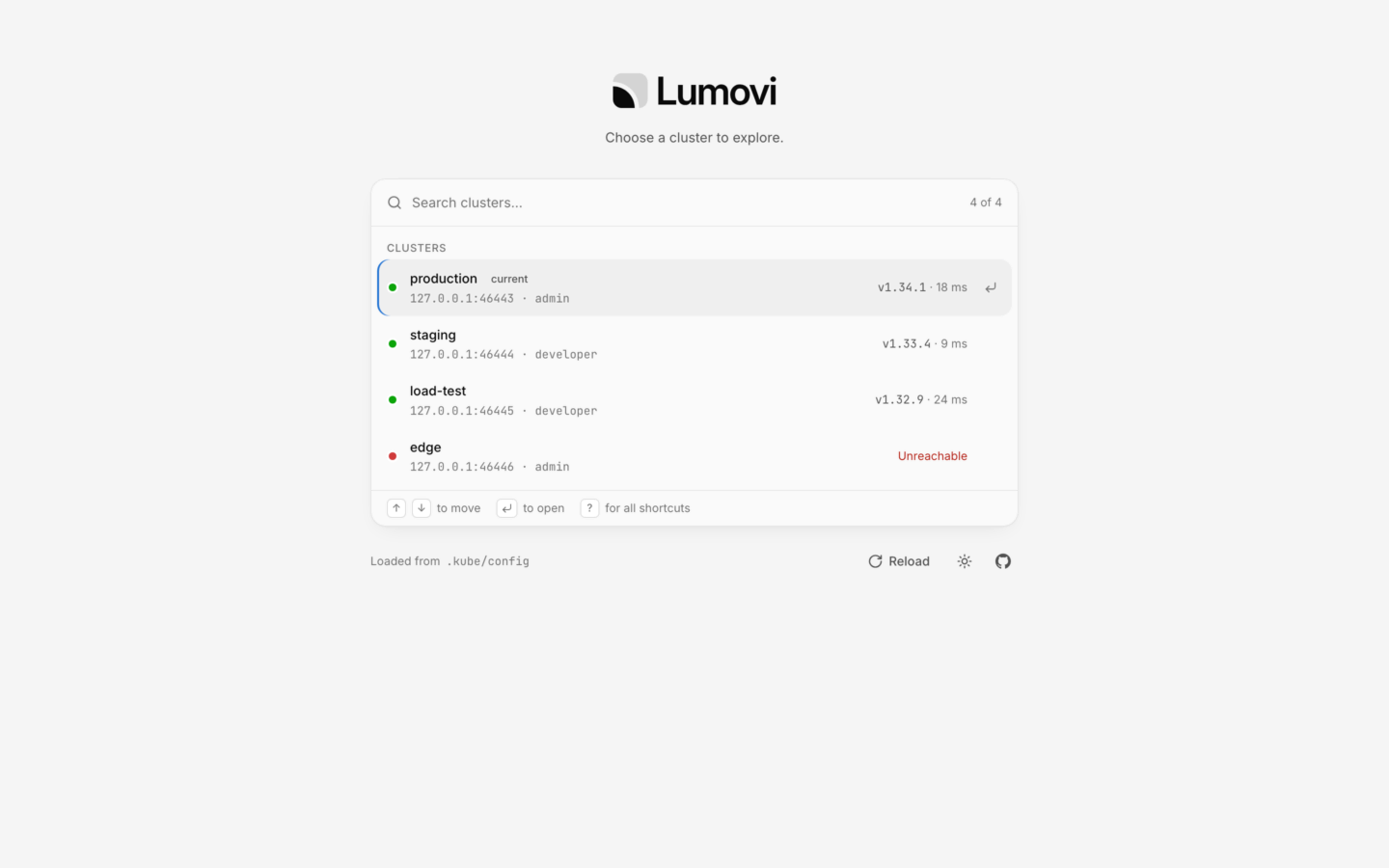
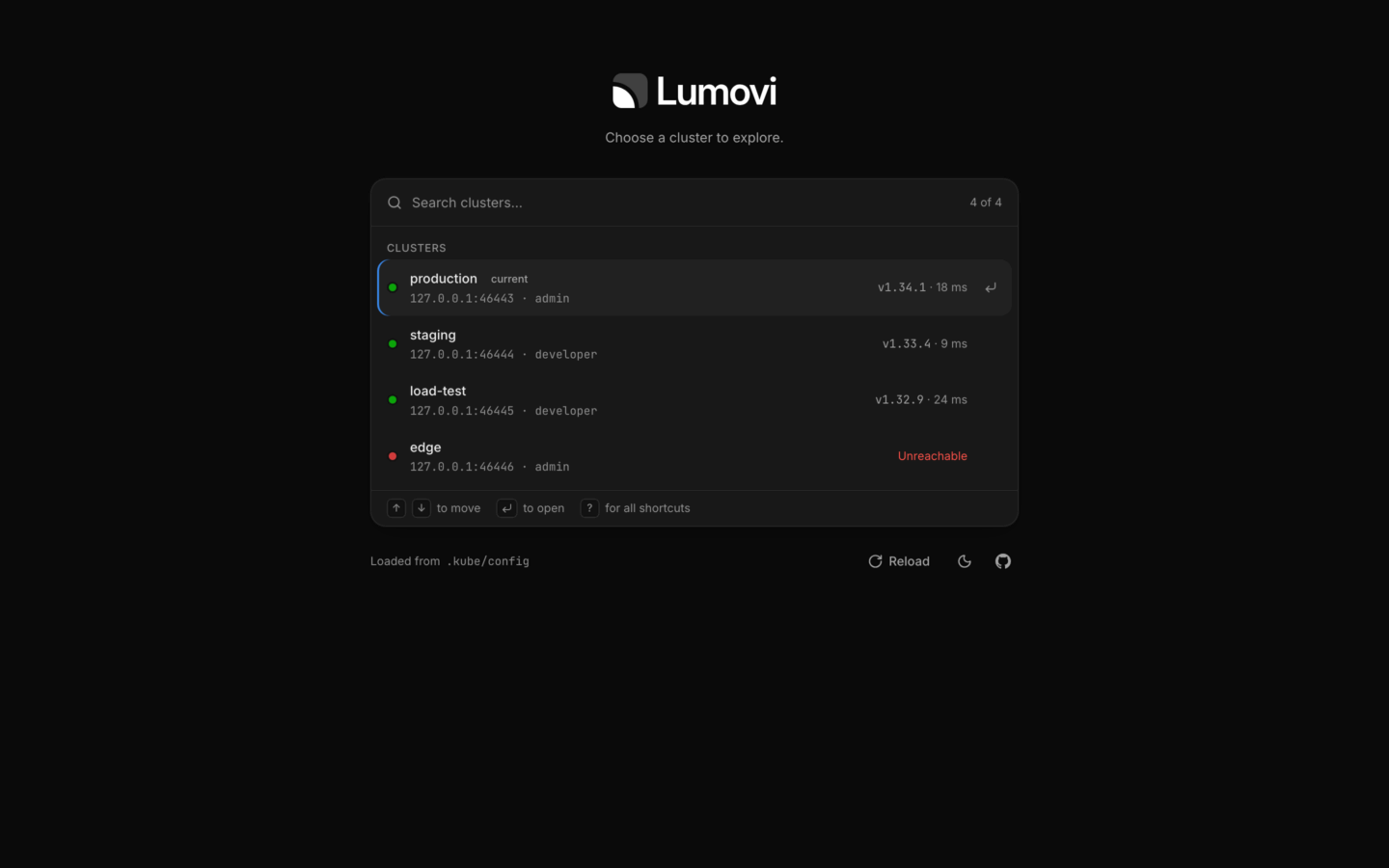
Every cluster, in its group, with its status.
- A tile in the cluster’s color, with its letters, and its status on the tile’s corner, pulsing while Lumovi asks the cluster for its version.
- Its name, with a Production badge if it’s production, a lock if it’s read-only, and current for your kubeconfig’s current context.
- Under it, the API server’s host and the user, like
api.example.com · admin, or the context’s name if you gave the cluster a name of its own. - Its version and how long it took to answer (
v1.34.1 · 18 ms), or what went wrong.
env=production, or not at all, and Lumovi remembers which.
Type to search, by name, context, server or label: env=production finds the clusters with that label, and each row shows the label it matched. Move with ↑ ↓, and press ↵ to open one.
A cluster you hide is left out, and the list’s footer counts the hidden ones: choose 2 hidden to show them, dimmed.
A cluster’s actions
Its ⋯, a right-click, or . on the selected row opens its actions:- Open.
- Settings… (⌘I): see Cluster settings.
- Copy for kubectl, for a cluster you added in Lumovi: see Use it with kubectl.
- Show in Finder: the file it’s read from.
- Hide, or Show.
- Remove from Lumovi (⌘⌫), for a cluster you added in Lumovi: see Change or remove it.
When a cluster can’t be reached
The label says what kind of problem it is. Hover it for the full message. If you open the cluster anyway, the overview explains what to try, with Try again and Choose another cluster.
Expired credentials show up as Unauthorized, or as Credentials failed when the plugin that gets them fails. On the start screen, both read Couldn’t sign in: hover it for which. A cluster that signs in through a plugin says so once it’s opened: its page says Couldn’t get credentials, with the plugin’s words. Signing in again with your cloud’s CLI usually fixes both.


A cluster that doesn't answer, and what to try.
Add a cluster
To add a cluster you have a kubeconfig for, without changing your own files, choose Add cluster above the list (⌘N). Paste the kubeconfig, or one context from it with its cluster and user. Or, under A file, drop the file or choose it: Lumovi copies what it needs, so the file can move or go. Check it then checks three things for each of its contexts, one after another, and says what it found:- It reads as a kubeconfig, with at least one context, and the cluster and user each context names.
- The server answers. Lumovi asks it for its version, without any credentials, and shows the version and how long it took. A server that refuses whoever asks has answered too.
- The credentials work. Lumovi signs in, and lists one namespace. Signed in but not allowed to list namespaces still counts.
proxy-url says which proxy everything to it goes through, without the proxy’s password.
From AWS
From AWS, the third way in, finds your EKS clusters with your ownaws command (the AWS CLI v2), run as you. Nothing of it runs until you choose Find clusters: not as Lumovi starts, and not on the start screen.
- Find clusters lists the profiles in your AWS config, each with the region it’s set to, and ticks
default, or the first. Tick the profiles to look with, and give each the regions to look in, likeeu-west-1, us-east-1. - Find clusters again lists the EKS clusters each profile has in each region, under its account and region, like AWS · prod (123456789012) · eu-west-1. Each shows its Kubernetes version, and its state when it isn’t active: Updating, Being created, Being deleted, Pending or Failed. An active or updating one has Add; one you’ve added says Added.
- Add checks its kubeconfig as a pasted one is. It’s the kubeconfig
aws eks update-kubeconfigwould write: it signs in by runningaws --region eu-west-1 eks get-token --cluster-name payments --output jsonas its profile, a command you agree to first, as below. Ready, it’s in a group named for its account and region, and Close goes back to what was found, to add another.
aws with the profile you ticked, and without the AWS_ACCESS_KEY_ID, AWS_SECRET_ACCESS_KEY and AWS_SESSION_TOKEN of its own environment, which would sign in instead; the command a cluster runs clears them too. Each run gets 30 seconds. A profile that signs in through a program of its own, like credential_process, runs that program as well. Lumovi reads nothing in ~/.aws itself and keeps no credential: aws gets a token each time the cluster is signed in to.
Where a profile can’t look, it says why, with the command to run, ready to copy:
- Its SSO sign-in has run out:
aws sso login --profile prod, then Find clusters again. - It has no credentials:
aws configure --profile prod. - It may not list clusters in that region: it needs
eks:ListClusters.
aws configure (or aws configure sso). Without the aws command, it says “Lumovi needs the aws command (AWS CLI v2), and this computer doesn’t have it.” A cluster whose name EKS doesn’t allow, or that EKS gave no https address or certificate authority for, is listed without Add, saying why.
Credentials that run a program, send a file, or go unverified
Some credentials do more than sign in, so the check stops before them, and shows exactly what:- A credential plugin (an
execuser, or agcporazureauth provider’scmd-path) runs a program to sign in: “Signing in runs a program on this computer”, with the command as it would run, the variables it sets, and under them those it clears. - A token file (
token-file, or an auth provider’stokenFile) sends a file on your computer to the server: Lumovi names the file, and each server it goes to. - A server that isn’t verified (
insecure-skip-tls-verify: true) would get the credentials whoever answers at its address: Lumovi names the server. A server on plain HTTP is asked about the same way, with or without that flag, as anyone on the network in between could read what’s sent to it, its credentials too. Lumovi itself connects to it only with the flag, but kubectl would either way, in a terminal or with the line for kubectl: without the flag, there’s nothing Lumovi can check, so the button that allows it is Add it anyway, which keeps it for kubectl at once.
Where it’s kept
Each cluster you add is a kubeconfig file of Lumovi’s own, in theclusters folder of its app data, named after it, like payments-us.yaml. On macOS and Linux, only your account can read the folder and its files. Lumovi reads them after your own files, and never writes any file but these.
What it keeps is only what you added: each context, under its name, with its cluster and user, which Lumovi names lumovi- and 12 random characters, so that no other kubeconfig’s cluster or user is ever taken for them. Comments, preferences and the current context are left out. It refuses:
- A context name it already reads, since kubectl would take the first one: “Already read: “prod”. kubectl would take that one, so name it otherwise.” Give the new one another name.
- A file named relative to the kubeconfig, like
certificate-authority: ca.crt: in Lumovi’s folder, it wouldn’t be found. Give its full path, or the certificate itself, in the-datafield. - A file that isn’t there, isn’t a file, or is over 1 MB, for a certificate, a key or a token: “It names /dev/zero, which isn’t a file.”
Use it with kubectl
Copy for kubectl, in its actions and its settings, gives the line that has kubectl read the cluster, in any terminal:$env:KUBECONFIG = "$HOME\AppData\Roaming\Lumovi\clusters\payments-us.yaml". Each path is quoted so that nothing in it is read as more than its text: one with a character a shell would read otherwise, like $ or !, goes in single quotes instead. Lumovi’s own terminals read it already.
Change or remove it
A cluster you added has, in its settings, Edit connection…: the add dialog again with its kubeconfig, checked as it was when you added it. Remove from Lumovi, there or in its actions (⌘⌫), deletes its file from Lumovi’s folder, and with it any cluster added with it, from the same kubeconfig. Your own kubeconfig files aren’t touched. A cluster from your own kubeconfig can’t be changed or removed here: change your file. Its kubeconfig comes back with each secret (a token, a password, a client key, an auth provider’s tokens, the values of its program’s environment, and a proxy’s password) as(kept by Lumovi), so they stay off your screen. Leave one as it is, and Lumovi keeps it, and checks the cluster with it; paste a new one in its place to change it. What it runs or sends, agreed to before, isn’t asked again, unless you change it. A secret written into a program’s arguments, like --oidc-client-secret=…, is shown as it’s written.
If you change where it connects (its server, its proxy, how its certificate is checked, or, for a user that signs in with OIDC, its identity provider), or add a context that signs in as the same user, Lumovi asks before a kept secret, or a program you allowed, is used there.
Your organization’s policy can keep Lumovi to the kubeconfig it manages: then you can’t add clusters, and those you added aren’t read until it’s gone.
Cluster settings
Each cluster has settings of Lumovi’s own, kept in its settings and never in your kubeconfig: Settings… in its actions, or ⌘I on the start screen. They apply when you choose Save.
Connection says where the cluster comes from. One from your kubeconfig can’t be changed here: “Lumovi never changes it: to change how it connects, edit the file.”, with Show in Finder. One you added in Lumovi shows its server and how it signs in, with Edit connection…, Copy for kubectl and Remove from Lumovi.
Settings are kept by the context’s name: a context you rename in your kubeconfig starts without them.
Switching clusters
The cluster switcher at the top of the sidebar shows the cluster you’re in, by its name in Lumovi, its Kubernetes version (or Unavailable when it doesn’t answer), and a lock if it’s read-only. Open it to:- Switch to another cluster: type to filter, and pick one.
- Go back to All clusters, the start screen.
- Turn Read-only on or off for this cluster.
- On a server, Notify me of new warnings, with what it’s set to, like On, in shop and payments: your own, in this browser. See Notifications of new warnings.
In your cluster: a Lumovi that shows one cluster has nothing to switch to, so the switcher shows the cluster’s name and address, and Read-only, which is the server’s, for everyone: see Read-only mode. In a fleet, the switcher and the command palette list every cluster you may see, and All clusters goes back to the fleet’s page of clusters. A browser has no menu bar, so there’s no ⌘⇧C.
When a cluster stops answering
If a cluster stops responding while you’re using it, a banner says Can’t reach production. Checking again every 15 seconds., with Retry now, and All clusters to open another. (When Lumovi runs in your cluster with one cluster, there’s no other, so the banner has only Retry now. In a fleet, All clusters goes back to its page of clusters.) The last data stays on screen, so you can keep reading while it comes back. When a single list fails to refresh, it keeps its rows and says Couldn’t refresh — showing the last data., with Retry.Big or slow clusters
Both are read when the app starts. See Environment variables.
Namespaces
Scope every list to one namespace, or see them all.
Permissions
What Lumovi needs from RBAC, feature by feature.