

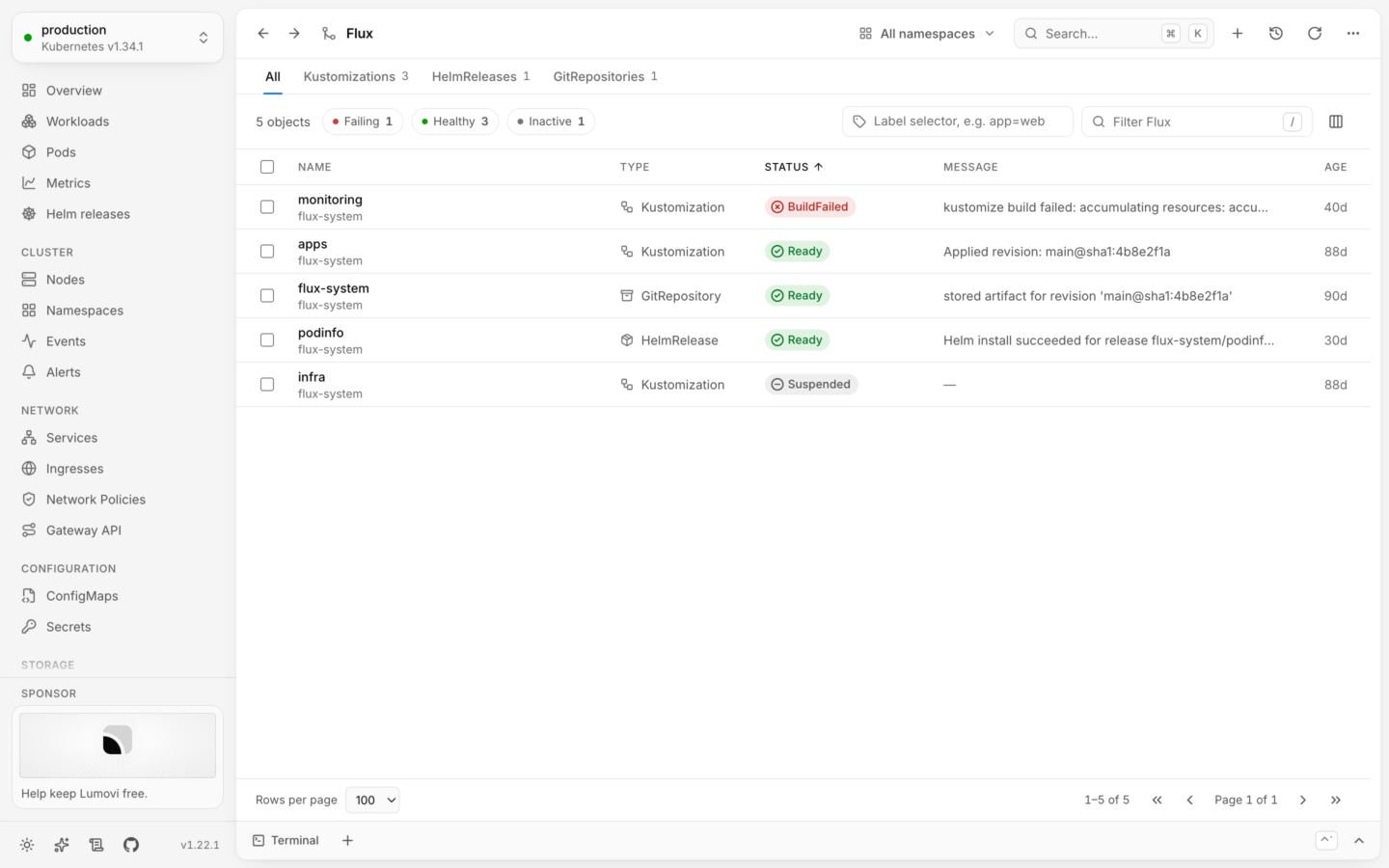
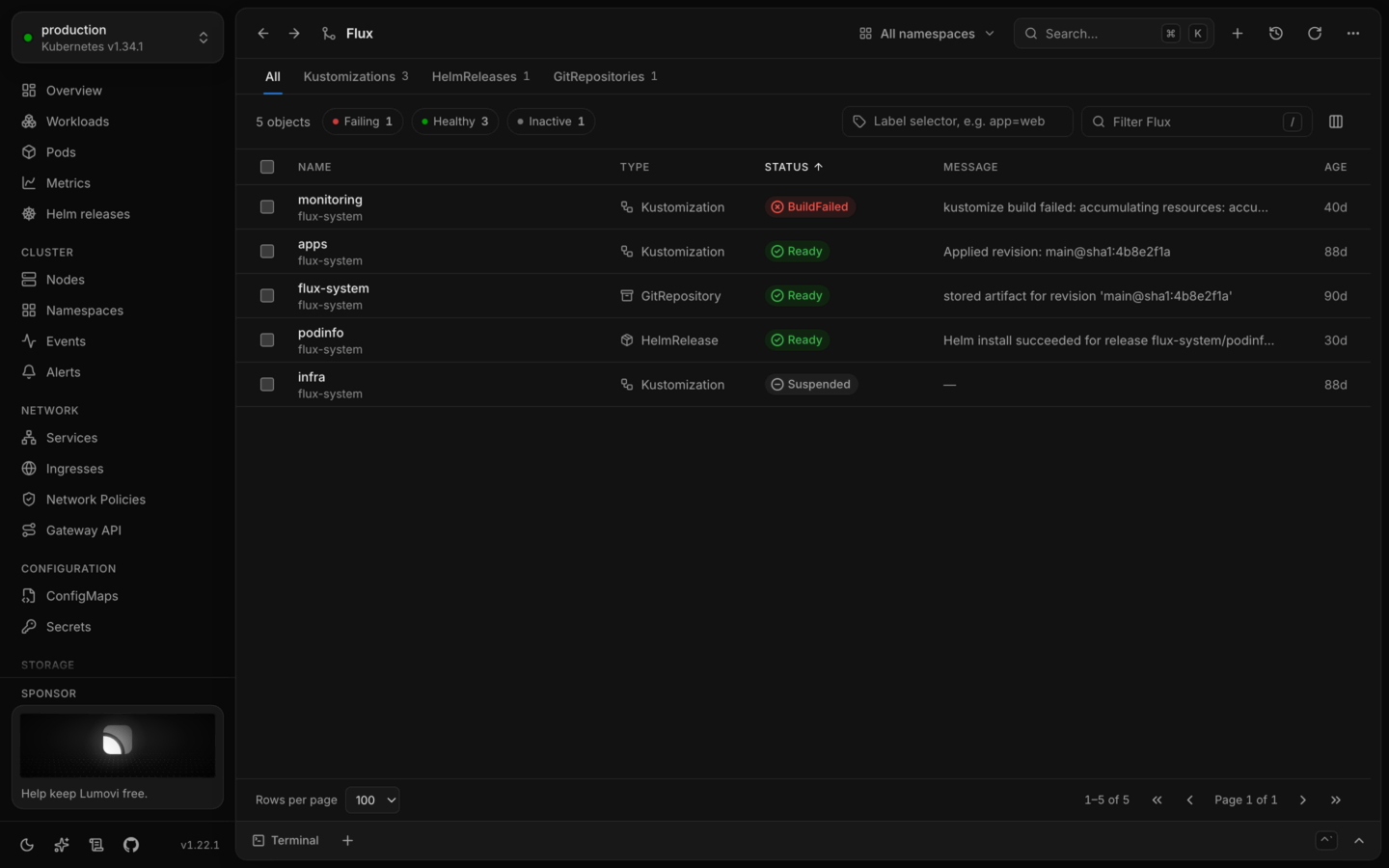
Flux's plugin: everything Flux runs in one list, what's failing first, and a tab for each of its kinds.
In the sidebar
A plugin shows up once the cluster serves one of its tool’s kinds. Lumovi looks at what the cluster serves again every minute, so a tool you just installed appears on its own, and one you removed goes away.- Under Plugins. Most plugins sit in a section of their own, by name, between Pinned and Custom resources.
- With Kubernetes’ own kinds. Plugins that extend what Kubernetes does sit at the end of that section: Cilium, Gateway API, Linkerd and Traefik under Network, Sealed Secrets under Configuration, and Longhorn, Rook Ceph and Volume Snapshots under Storage.
certificates offers cert-manager. (⌘ is Ctrl on Windows and Linux.)
The plugin’s page
Tabs
All comes first, then a tab for each of the tool’s kinds that the cluster serves, in the plugin’s order, with how many objects it has. A kind’s tab is its usual list, with its view’s columns and actions, and the plugin’s tabs stay above it. When there are more tabs than fit, they scroll sideways. Counts and lists follow the namespace you picked. Kinds without namespaces are always the whole cluster’s, and when all of a tool’s kinds are, like Karpenter’s, the namespace picker says Cluster-wide.Everything in one list
All lists every object of the tool’s kinds:
The list sorts by status, so what’s failing comes first: Failing, then Warning, In progress, Healthy and Inactive. Click any column to sort by it instead.
- Health. The chips above the list (Failing, Warning, In progress, Healthy, Inactive) show only objects in that state, with how many there are. Pick several to combine them.
- Filter. Press / and type. Filter Flux (named after the tool) matches names, namespaces, kinds, labels written as
key=value, and what the status says. - Label selector. Type a selector like
app=weband press ↵. The cluster filters every kind’s list with it.
When something’s missing
- Nothing yet. With no objects, the page says Nothing from Flux in shop (or in this cluster), and which kinds would show up here.
- A kind it couldn’t list. When you can’t list one of the kinds, a line above the list says Couldn’t list, which kind, and why. The other kinds still show.
- A long list. Lists that are too long to load whole are cut short, and the page says some objects may be missing. Choose a namespace, or use Filter by label.
- A tool the cluster doesn’t have. A plugin’s page opened from a link, in a cluster without the tool, says This cluster doesn’t have it: none of its kinds are served there.
Pages drawn by a plugin’s code
Four of the plugins Lumovi comes with add pages of their own, drawn by their own code: Karpenter an overview, Argo CD an overview and a tab on each Application, CloudNativePG an Overview and Backup health, and Prometheus Operator a Target health page. See Included plugins for what each shows. That code comes inside Lumovi, from the same signed release as the plugins’ files, and runs in a sealed box: a place of its own, apart from Lumovi’s page, with no network, which can’t reach Lumovi’s cookies, storage or credentials. It’s handed only what its file says it may read, read by Lumovi as you, and it draws with Lumovi’s own parts, so it looks like the rest of Lumovi and can’t draw anything else. Lumovi stops a page that sends what a plugin can’t, or more at once than it may, or stops answering, and in the desktop app one that uses more memory than a plugin may, or more than half of a processor core for half a minute. A strip at the top of each such page says whose it is: “This page is from the plugin Argo CD 1.2.0. Lumovi draws it from its own parts; what it shows and says is the plugin’s.”, with What it may do →, which opens the plugin’s entry under All plugins.Changes a page proposes
A plugin’s page can’t change anything itself. It can propose a change, which Lumovi shows in its own dialog, over its own header where no plugin can draw: what the change does in Lumovi’s words, the plugin’s options, What Lumovi will send as the cluster says it would be (a diff, or the whole object it would create), itskubectl command, and whether the cluster accepts it. After every change to the options, Lumovi asks the cluster again, and its button can be pressed a moment after the cluster’s answer. Nothing changes until you press it. Then Lumovi judges it again: if the object moved since you saw it (its tool rewrote its status, say), Lumovi tries the same change on it as it is, and makes it only where it does exactly what you were shown. Otherwise nothing is made, and the dialog shows the change again: ”… changed since this was shown. Here is the change again, as it stands now.” Once a change is made, every plugin page reading that object reads it again.
However long the plugin’s options are, the change is in view: What Lumovi will send opens on the first changed line, keeps at least three rows of the change, and wraps a long line whole, never cutting it at the edge. Where the change is longer than its box, a line of Lumovi’s under it says so, like “Shows 3 of 25 changed lines. Scroll to see the rest.” In a short window, the command folds behind Show the command; the cluster’s verdict never does.
What it may propose is in its file, and its entry says it, like Its pages may propose to change Applications, each change one you confirm in Lumovi. It’s only ever its own kinds, never an object’s status, and of its metadata only its labels and annotations, and the name of one it creates. A change comes to at most 16 KiB. A change Lumovi makes for a plugin is in the audit log as plugin.change, without the values you set. Where it can’t be made, no dialog opens, and a note says why: in a read-only cluster, “This cluster is read-only in Lumovi: Argo CD’s change isn’t made here.”; where you may not make it, “You may not make Argo CD’s change here.”; on a phone, “This isn’t done from a phone. Open Lumovi on a larger screen to change payments.”; and where your organization’s policy says pluginProposals: off, “Your organization’s policy doesn’t let plugins propose changes.”
Logs on a plugin’s page
A plugin’s page can show a pod’s logs, where its file says it may (logs: shown). Lumovi reads them, as you, and draws them in its own log view, the same as a pod’s Logs tab: the plugin’s code never sees a line. The card says so, like “Shown by Lumovi: Toys’ code never sees them.” for a plugin named Toys.
A page shows four logs at once, and a plugin eight, across its pages and tabs. One past that waits, and says why: “Not shown: a plugin’s page shows 4 logs at once. This one starts when another closes.” Reading them follows your access to logs, and each read is in the audit log as logs.read, its summary ending “shown on the plugin Toys’ page”. Where your organization’s policy says pluginLogs: off, the card says “Your organization’s policy doesn’t let plugins show or read containers’ logs.”, and none are read.
A plugin’s code can also read a pod’s logs itself, where its file says so (logs: read, with Pods among what it reads). That’s heavier: what containers print can hold tokens and personal data, and it reaches the plugin’s code. So its entry under All plugins says it first, in red: “Its code reads containers’ logs: what they print, which can hold tokens and personal data, reaches its code.”, and under it, “Of pods its page shows, one container at a time: at most its last 500 lines or hour, as you, within your access.”
- Only pods its page shows: its code asks by the token Lumovi handed it for a pod, for one of its containers.
- Once, never a follow: the last 500 lines at most, or those of the last hour, or its previous instance’s. Lumovi hands it at most 500 lines and 64 KiB, the newest, never part of a line, and says where the oldest were cut.
- As you: within your access to logs. Each read, or refusal, is in the audit log as
logs.read: “Read the logs of Pod checkout-7d9f (envoy), for the plugin Toys’ code”. - Asked again when an update starts reading them: it’s under New in, in red.
pluginLogs: off turns this off too.
Of the plugins Lumovi comes with, CloudNativePG shows the primary’s log of the cluster you pick. None reads logs with its code.
A plugin’s own server
A plugin’s code can ask its tool’s own server in the cluster for what that server knows, like a Prometheus server for its scrape targets, where its file says so (server). It asks only for the paths its file lists, of the one Service its file names, by its name or by labels exactly one Service has, on the port it names, in the namespace of an object of the plugin’s own kind that its page shows. A part of a path, like {widget}, is filled only with the name of such an object.
Lumovi makes the request, not the page: a GET through the cluster’s API server, as you, so it needs get on services/proxy there. It follows no redirect, waits at most 5 seconds, and takes at most 1 MiB. Only JSON reaches the plugin’s code. Any other answer is a sentence of Lumovi’s, like “prometheus-operated answered with more than 1 MiB.”, never the server’s own text or headers. A page may have two asks waiting for an answer, and a plugin four at once across its pages.
What the server answers reaches the plugin’s code, so its entry under All plugins says so first, in red: “Asks the server prometheus-operated in this cluster, through Lumovi, and its code reads what it answers:”, then the Service, its port and where it’s found, and each path. Installing or updating a plugin from Lumovi-plugins asks again when a release names another server or a new path. Each ask is in the audit log as plugin.server, and your organization’s policy can turn it off (pluginServers: off).
The server gets none of your credentials: see Plugins’ code.
Of the plugins Lumovi comes with, Prometheus Operator asks its server: the prometheus-operated Service, for /api/v1/targets?state=active.
Links to Lumovi’s own places
A plugin’s page can link to a pod’s Logs or Shell tab, or to Port forward for a pod or a service, where its file says it may, and only for an object it was handed. The link opens Lumovi’s own tab or dialog, at the container or port it names. What happens there is what you do: a plugin’s page can bring you to a shell, never start one. A Shell tab opened from a plugin’s page says so, like “Opened from Toys’ page” for a plugin named Toys, and waits: “Toys’ page opened this tab. A shell starts only when you press Start: as you, within your access.” Start shell isn’t focused, and ↵ doesn’t press it. Where the pod has no container by the name the page asked for, the tab says so, “Toys’ page asked for a container named envoy, which this pod doesn’t have.”, and opens on its first, as it would anyway. A shell opened this way is in the audit log as any other, its summary ending “from the plugin Toys’ page”. Of the plugins Lumovi comes with, CloudNativePG links this way: Shell into primary and Forward 5432 on its Overview, and each instance’s row to that pod’s logs. A plugin’slinks say where it may.
Turn a plugin’s code off
Open a plugin under All plugins, and turn off Run its code. Under it is what its code does, like Draws its overview. It reads Nodes and Pods as you, and changes nothing. Off, its pages and tabs say “You turned off its code. Turn it on in Plugins to see this page.” with Open Plugins, and nothing of its code is handed to Lumovi’s page or run. Its kinds, their lists, and the actions its file spells out stay. It’s your own switch: on a server, kept for you alone. Where Lumovi has an overview of its own for the plugin, as it has for Karpenter, that’s shown instead: Its pages don’t run: you turned off its code. Lumovi shows its own overview of Karpenter instead. It can also be off for you:- On a server, where its administrator turned plugins’ code off with
pluginCode: “This server doesn’t run plugins’ code.” The switch is off and locked, with Turned off on this server. - On your organization’s computers, where their policy says
no-code: “Your organization’s policy doesn’t let plugins run code.” The switch is off and locked, with Turned off by your organization’s policy.
plugin.code-switch.
Karpenter
Karpenter’s plugin opens on an overview of its own instead of a list: its node pools against their limits, the nodes they launched and the ones launching, the mix of instance types, capacity types and zones, what’s being disrupted, and the pods waiting for a node. Its first tab is Overview, and its kinds’ tabs (NodePools, NodeClaims, and the node classes) follow. The overview is drawn by the plugin’s code. Wherever that doesn’t run, Lumovi shows its own overview of Karpenter in its place, with the same cards.

Karpenter's node pools against their limits, the nodes they launched, and what's being replaced or waiting for a node.
karpenter.sh/nodepool.
The four numbers
Each tile opens the list behind it. Node pools ready and Nodes ready open filtered to what isn’t ready when something isn’t, and Nodes ready opens Nodes with the label selector
karpenter.sh/nodepool. Launching opens the node claims, filtered to the ones in progress while some are launching.
Node pools
Each node pool, by name, with its status, how many nodes it has, and how much of its CPU and memory limits its nodes take, like 24 of 64 cores. A node pool without a limit says no limit, with a dashed track. Under its name, a node pool says what it launches: its capacity types and instance families, like Spot, on-demand · m6i, c6i. These come from its requirements onkarpenter.sh/capacity-type (on-demand when it has none), and on karpenter.k8s.aws/instance-family, karpenter.k8s.aws/instance-category, karpenter.azure.com/sku-family or node.kubernetes.io/instance-type, the first it has. A node pool that isn’t ready shows why instead.
Nodes
Karpenter’s nodes, grouped by node pool, each with its instance type, capacity type and zone. With metrics-server, each has meters for its CPU and memory use; without it, its status and how many cores it has. Node claims still on their way are listed with their node pool, as Launching, with how long ago they started.Node mix
How many nodes there are of each instance type, capacity type and zone, the most common first.Disruption
The node claims Karpenter is replacing, or could do without, with how long they’ve been that way:
When there are none, it says Nothing is being disrupted.
Waiting for a node
The pods the scheduler couldn’t place anywhere, which Karpenter launches nodes for, with the scheduler’s message. When there are none: No pods are waiting for a node. Nodes (for each node pool), Disruption and Waiting for a node show six rows, with Show all for the rest. Click anything to open it. On a cluster with thousands of nodes, Nodes shows as many as fit, its node pools in name order, and says so: Shows 2,500 of 3,180: the node pools in name order, as many as fit. The tiles above count every node, and Lumovi’s Nodes list has them all. The overview reads node pools, node claims and nodes, and pods in every namespace, so it needslist on all four. A card whose list you can’t read says why, and the others still show. Of nodes, its code is handed their names, labels, taints, allocatable resources, conditions and usage; of pods, their names, namespaces, ages, nodes and conditions. It changes nothing.
Every plugin on one page
All plugins, last under Plugins in the sidebar, lists every plugin Lumovi has: the ones it comes with, and the files in your folder. It opens by saying what a plugin is:A plugin teaches Lumovi a tool’s kinds: their columns, status, details and actions. Its actions change objects only with the patches and the objects they spell out, each shown here. Some plugins also add pages drawn by their own code, in a sealed box: it reads only what its file says it may, and any change it proposes waits for you in Lumovi’s own dialog. Those are the plugins from Lumovi-plugins, the ones Lumovi comes with and the ones you install, and yours only while Developer mode is on. A plugin has no access of its own: what it reads and changes, it does as you, and the cluster refuses what you may not do. Lumovi’s come inside Lumovi, and the ones you install from Lumovi-plugins’ signed releases; yours are your own files.With Developer mode on, the fourth sentence ends “and yours, each once you’ve agreed to what it may do”; where your organization’s policy keeps it off, “but none of yours: your organization’s policy keeps Developer mode off”. On a server, the opening says “A plugin this server’s administrator added is data, and runs no code” in place of that sentence, and ends “this server’s are files its administrator put there.” Where your organization’s policy allows only some plugins, it adds: “Your organization’s policy allows only some plugins here: the others aren’t shown.” Each plugin is a row:
- Plugin: its name, its version and the kinds it shows (three, then how many more), with Yours on one from your folder.
- On the cluster: On this cluster: in the sidebar where the cluster serves one of its kinds and it has a place there, On this cluster for one with views only, or Not on this cluster. One of yours with the name of one of Lumovi’s says In use in place of Lumovi’s Flux, and Lumovi’s own row says Not in use: your flux.yaml is used in its place, all of it.
- From: Lumovi, which came with this Lumovi, or Yours, with the file’s path.
Newer plugins
In the desktop app, the page says which plugins have a newer version in the latest release of Lumovi-plugins, where Lumovi’s come from. It looks when you open the page, and when you press Check now, and at no other time. A line above the list says what it found: Lumovi-plugins release 1.3.0 · checked 2m ago. Lumovi takes a release only if it’s signed by Lumovi-plugins’ release workflow, shown to be built from its tag’s commit, each file the one the release names, no older than one Lumovi has already taken, and not past the date its index says it expires. A release that fails one of these is used for nothing, and the line says which, like Couldn’t check for newer plugins: the release isn’t signed by Lumovi-plugins’ release workflow, so Lumovi took nothing from it. What the last good check found stays shown.- Updates lists the plugins with a newer version, each with Update: and the version under its name, and Update….
- A newer version that needs a newer Lumovi says so at the row’s end, like 1.3.0 needs Lumovi 1.23.0.
- Not here yet lists the release’s plugins that this Lumovi doesn’t have, From Lumovi-plugins, each with whether its kinds are on this cluster, and Install…. Open one to see what it would ask for, in the same words as any other.
pluginStore: off), and so do plugins: bundled and plugins: off: the line then says “Your organization’s policy turns off checking for newer plugins.” A server doesn’t check.
Install and update plugins
In the desktop app, Install… and Update… install a plugin from that release of Lumovi-plugins. Nothing installs or updates by itself. Each opens a dialog first, Install Argo CD 1.3.0? or Update Argo CD to 1.3.0?, which says where it’s from: “From Lumovi-plugins release 1.3.0, signed by its release workflow. What it reads and changes, it does as you.” Then what the plugin may do, in the same lines as What a plugin asks for:- An install lists all of it, under What it may do.
- An update says which version is in use, then what’s new first, under New in 1.3.0, with how many; then No longer, what it stops asking for; then whether its code changed, with See what changed on GitHub, which opens the changes between the two releases of Lumovi-plugins, and says under which folders this plugin’s are. The rest is folded under Everything else it may do, as before. One that asks for nothing new says “It asks for nothing it doesn’t already have.” What’s new and what’s gone are worked out from what each version asks, never from the words.
- Back to 1.2.0: the version before, kept on this computer. Only that one is kept.
- Back to the one that came with Lumovi: as built into this Lumovi.
- Its release on GitHub.
- Remove Argo CD, for one that doesn’t come with Lumovi: “Its pages and lists go, and nothing in your cluster changes.” It goes back under Not here yet.
pluginsAllowed: ["argo-cd@1.2.0"]: see pluginsAllowed.
Installing, updating, going back and removing are in the audit log.
What a plugin asks for
Open a row to see what the plugin asks for, read from its file in Lumovi’s words. Nothing there is the plugin’s own account of itself.- Run its code, first, for a plugin with pages of its own: its switch, and what its code does.
- May change and create: only the kinds it shows, by name, and the API groups they’re all in; what its actions create, each one of its own kinds; and what no plugin can: what’s the cluster’s to set on an object (its owners, finalizers, name or namespace), and Kubernetes’ own kinds. An action that writes an object’s status on the object itself says so first, as the one exception, and has to ask first: “Writes Applications’ status, in one place:
status.operationState.phase, by Terminate sync…, which asks you first.” A plugin whose pages propose changes says which, like Its pages may propose to change Applications, each change one you confirm in Lumovi. A plugin without actions says Nothing. It has no actions. - May read: its own kinds’ objects, whose fields its columns, status and details show; the kinds of Kubernetes’ it shows and can’t change; the kinds its related lists list beside an object, picked by their labels or fields; and the kinds it links to by name. For a plugin with code, what its code is handed of each kind of Kubernetes’, field by field, like Of Nodes, its code is handed only metadata.name, metadata.labels, spec.taints, status.allocatable and status.conditions, with their usage, as far as you may read them. It ends with what it doesn’t read, and that it sends nothing anywhere: “It reads no logs. It reads no Secret’s value. It sends nothing anywhere but to this cluster.” A plugin whose pages show logs says instead “It shows containers’ logs: Lumovi reads them, and its code never sees them.”
- Adds to Lumovi’s pages: its pages, its tabs and on which kinds, and its commands in the palette, each by name. Where its pages don’t run, it says why, like Its pages don’t run here: Lumovi’s check of this browser didn’t pass. Then which of Lumovi’s own lists its pages may open, like Its pages may open Lumovi’s lists of Deployments, StatefulSets, DaemonSets, Services, ConfigMaps, Ingresses, Jobs and CronJobs., and which of Lumovi’s own places they may link to.
- Also under May read, where a view says what it manages, every object of those kinds in the cluster you may list (or, where you can’t, in the namespaces you’re looking at), to say which of them manages each workload, by labels and annotations the workload carries under the tool’s own groups.
- Its actions, and what each sends: each action with the kinds it’s on, whether it asks first or runs at once, and its patch as the file writes it, or the object it creates under Creates. What’s filled in later is shown as what it is:
(now),(what you choose),(from the object), and(removed)for a field a patch takes away. An action’s undo is shown under it as Undo sends:, and one that patches an object’s status says so. An action with its own question and button shows them as the file writes them, as Its question: and Its button:, and one withsamesays Sent only if.status.operationState.startedAtis as you saw it.
When a file isn’t in use
A file with a problem is a row too, by its file’s name: Not in use. 2 problems to fix in the file., with each problem under it, saying where in the file it is. Where the file has the name of one of Lumovi’s plugins, the row adds Lumovi’s Flux is shown instead. API resources says only that there are problems, A plugin couldn’t be used. or how many, with See Plugins to come here. Every message is in the plugin format.Your own plugins
A plugin is one short YAML file, a document of kindPlugin, in ~/.lumovi/plugins. This one gives two kinds of your own a place in the sidebar:
platform.yaml
version,needsandgroupssay what it is: its own version, the oldest Lumovi it works with, and the API groups its kinds are in.kindsare the tabs, in order.kind: '*'with agroupis every kind of that group, each with a tab.labelis its name in the sidebar, and needed withkinds.iconis one of the icons.categoryputs it at the end of one of Kubernetes’ sections instead:cluster,network,configorstorage.groupshold every kind it names. A plugin is for a tool’s kinds: Kubernetes’ own can’t be under its place, and a plugin can only show the ones Lumovi has no page for.
views:. See Write a plugin.
Your own plugins with code
In the desktop app, a plugin of your own can draw pages with its own code, as the ones from Lumovi-plugins do, in the same sealed box, through the same checks, with nothing looser. Its code runs only with Developer mode on, and only once you’ve seen what it may do and agreed.- Its folder. A plugin with code is a folder of its own in your plugins folder, named as the plugin is (its
metadata.name), with its file and its code:my-plugin/plugin.yamlandmy-plugin/plugin.js. Nothing else in the folder is read. A folder named otherwise isn’t used: “my-plugin/plugin.yaml: the plugin is named platform, so its folder should be too”. A plugin without code stays one file, as above. - Developer mode. At the foot of All plugins, beside where yours go: “Run code from plugins in your own folder. Only turn this on for plugins you wrote or trust as much as Lumovi.” It’s off as Lumovi starts for the first time, and while it’s off, no
plugin.jsis opened at all: a plugin with code says “Its pages don’t run: Developer mode is off.”, and its pages say “Developer mode is off.” with Open Plugins. - Agreeing to what it may do. With Developer mode on, a plugin with code says “Its code waits for you to agree to what it may do.” with See what it may do…, and so do its pages. That opens Run my-plugin’s code?: “From your own folder, ~/.lumovi/plugins/my-plugin/plugin.yaml. Nobody but you vouches for it: what it reads and changes, it does as you.”, then everything it may do, in the same lines as What a plugin asks for, its code first. “Its code doesn’t run until you press Run its code.” Not now leaves it waiting.
- What runs is what you agreed to. Lumovi keeps what you agreed to: what its file asked, and its code’s SHA-256. It reads the code once, checks it against that, and hands that same code to its box. While Developer mode is on, Lumovi watches the folder. New code waits again, as my-plugin’s code changed, with one press to run it: “Its code changed since you agreed. It waits for you.” A file that asks for more waits again, showing what’s new: “It asks for more than when you agreed. It waits for you.”
- Turning it off. Off, its pages close at once, and what you agreed to is kept. On again, it runs without asking, unless its file or its code changed.
- What Lumovi can’t say. A plugin whose file has something this Lumovi can’t say in its words isn’t used: “my-plugin/plugin.yaml: this Lumovi can’t say all that it asks for (…), so it isn’t used”, naming what it can’t say.
plugin.code-agreed. Your organization’s policy can keep Developer mode off. Then the switch is locked, with “Turned off by your organization’s policy.”, and what you agreed to is let go as Lumovi starts: once it’s allowed again, each plugin waits for you from the start.
What you agree to is kept with your settings, which are yours to change, as everything Lumovi keeps on your computer is: it’s what Lumovi does, not a wall against you. To start one, use the template in Lumovi-plugins: its README has the steps, and npm run folder puts a plugin where Developer mode reads it. What a page can be made of is in The kit.
Replacing one of Lumovi’s
A kind is one plugin’s, so a plugin of yours can’t show a kind one of Lumovi’s has, unless it takes that plugin’s place. Give yours the samemetadata.name as Lumovi’s, like flux or cert-manager (Included plugins gives each one’s name). Yours is then used in its place, all of it: Lumovi’s place in the sidebar and every one of its views go.
flux.yaml
When something’s wrong with it
A plugin is used whole or not at all. If anything in its file is wrong, none of it is used, and All plugins lists everything wrong with it under the file’s own row. When that leaves one of Lumovi’s in use in place of yours, the row says so: “Lumovi’s Flux is shown instead”. Every field, and every message, is in the plugin format.In your cluster: plugins everyone sees go in the chart’s
plugins value. People can’t add their own from a browser. See Plugins for everyone.Included plugins
Every plugin Lumovi comes with, and what its views add.
Plugin format
Every field a plugin can have.