

Whoever runs Lumovi sets up the fleet, and decides which clusters you see: see A fleet of clusters. The desktop app lists the clusters in your kubeconfig instead: see Connect your clusters.
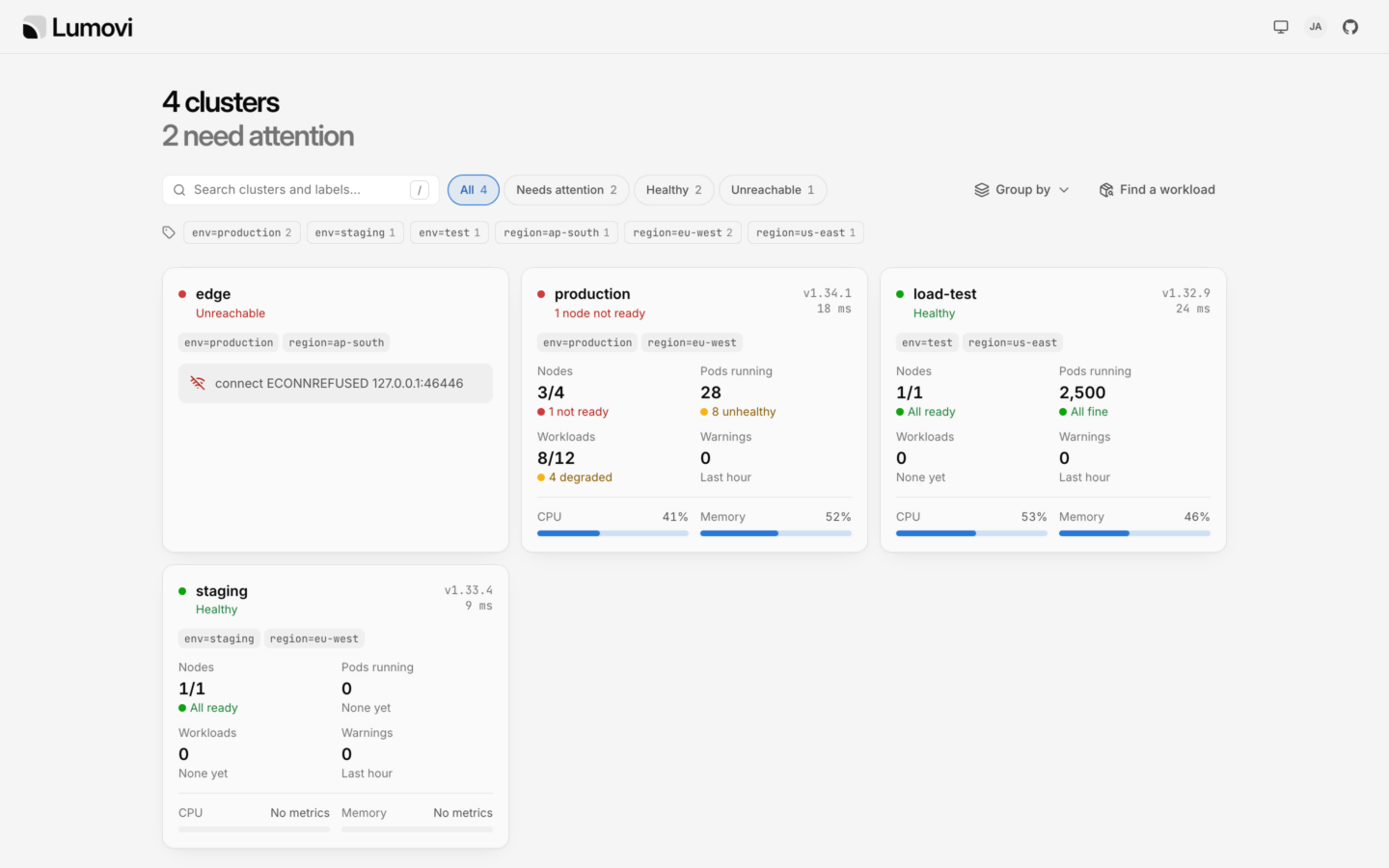

Every cluster you may see, the ones that need attention first.
Every cluster on one page
The heading says how many clusters you may see, and how many need attention. While Lumovi is still hearing from them, it says Checking each one…, and when none needs attention, All healthy. Lumovi asks each cluster as you, so each card shows what your account there may see. It asks again every 30 seconds while the page is open, so the figures keep up, and clusters your team adds or removes come and go without a reload. If no cluster is shared with you, the page says No clusters for you here. Ask whoever runs Lumovi to add one, or to share one with your groups.A cluster’s card
Each card starts with the cluster’s name and status, and on the right, its Kubernetes version and how long it took to answer. Below them are its labels, likeenv=production and region=eu-west, which your team gives each cluster. Then come the same figures as the tiles on its overview:
The figures are for the whole cluster. One your account may not list shows — and No access: hover it for the cluster’s answer. So if you may only list pods in a few namespaces, Pods running says No access, and the cluster is judged by what you may see.
A cluster that didn’t answer has no figures. Its card says why instead, like
connect ECONNREFUSED 10.0.4.12:6443. What each reason means, and what to do, is further down this page.
What needs attention
A card has one status: the first of these that applies. So a cluster with nodes that aren’t ready says so, even if its workloads are degraded too.
Until a cluster answers, its card says Checking….
A cluster needs attention when its status is one of the first four. Those come first on the page: clusters that didn’t answer or have nodes not ready, then those with workloads degraded or pods unhealthy. Then come the clusters still being checked, the healthy ones, and last the ones you have no access to, each in order of name.
Warning events are counted on each card, but don’t make a cluster need attention: every cluster has some.
Narrow it down
Above the cards are a search box, a chip for each status and a row of labels:- The chips, All, Needs attention, Healthy and Unreachable, show those clusters, each with how many there are. Unreachable has every cluster that didn’t answer, whatever the reason. A chip with no clusters is hidden. Clusters still being checked, and those you have no access to, are only under All.
- The search box matches each cluster’s name and labels. Every word you type has to appear, so
prod eufindsprod-eu, andregion=usfinds the clusters inregion=us-east. Press / or ⌘K to go to it, ↓ to move to the first card, and Esc to leave it. - The row of labels under it lists every label your clusters have, with how many have it. Click one to keep only the clusters that have it, and more to keep the ones that have all of them. Click it again to drop it.
- Group by puts the cards under a heading for each value of a label, like
region=eu-west, with how many clusters each has. Clusters without that label come last, under No region. While it’s on, the button says Grouped by region. Choose Nothing to put the cards back together.
Kept in the address
The search, status, labels and grouping are all part of the page’s address. Back and Forward bring each of them back, and a link you copy opens the page the same way for whoever opens it, with the clusters they may see. The Lumovi logo at the top goes back to every cluster, with nothing picked.Find a workload
Find a workload, at the right above the cards, looks for a workload in every cluster that answered: their Deployments, StatefulSets, DaemonSets and CronJobs. Type two or more characters of a name or a namespace. Every word you type has to appear in one or the other, soshop cart finds cart in shop.


Finding a workload by name or namespace, in every cluster.
- Before you type, it says how many clusters it will look in. While it looks, it says Looking in 3 clusters…, and when nothing matches, No workload here is called “checkout”.
- It shows the first 50 workloads it finds, and how many more there are. Type more of the name to narrow them down.
- It lists each kind in the whole cluster, as you. In a cluster where you may only list workloads in some namespaces, it finds none of them.
Open a cluster
Click a card, or press ↵ on it, and the cluster opens on its Overview. From the search box, ↓ moves to the first card, and Tab moves on from there. Each card is a link, so you can also open a cluster in a new tab. Inside, it’s the same Lumovi as with one cluster: the sidebar, the namespace menu, the command palette and every page. Your account menu, with Sign out, is at the bottom of the sidebar; on the page of every cluster, it’s at the top right. See Signing in. What you pick in a cluster is kept in your browser, for that cluster:- The namespace. It starts with All namespaces.
- Whether you’ve made it read-only for yourself, with Read-only in the cluster switcher. When your team made every cluster read-only, it’s read-only for everyone, and the switcher says For everyone, on this server.
- Where its usage history comes from.
Move between clusters
- The cluster switcher, at the top of the sidebar, shows the cluster you’re in. Open it for every cluster you may see, each with a dot for whether it answers, and a check by the one you’re in. Type to filter, and pick one. All clusters, at the end of the list, goes back to the page of every cluster.
- The command palette: press ⌘K and type a cluster’s name. Its Clusters group has every cluster you may see, and All clusters. See Finding things.
- Back (⌘[, or your browser’s) returns to the page you came from, with what you’d picked on it.
When a cluster can’t be used
A cluster can be on the page and still not open. Its card says why, and so does the cluster when you open it: its overview shows the error, with Try again and Choose another cluster, and a banner says Can’t reach edge. Checking again every 15 seconds., with Retry now and All clusters.
No access isn’t an error: the cluster answered, but your account may list none of its nodes, pods and workloads. Open it to use what you may, and see Permissions for what to ask for.
A cluster that isn’t shared with your groups isn’t on the page at all. A link to it, from a teammate say, opens on This server has no cluster called “staging” that you can see.
Keyboard
On the page of every cluster:
In Find a workload, ↑ ↓ move through what it found, ↵ opens one, and Esc closes it. Inside a cluster, every shortcut works as usual: see Keyboard shortcuts.
Signing in
Who you are in each cluster, and what you can do.
A fleet of clusters
For whoever runs Lumovi: where clusters come from, and who sees each one.